
Students enrolled in courses that require Adobe Creative Cloud applications such as Photoshop, Illustrator, Premiere, Audition, and InDesign for course work can receive a semester-long subscription to Adobe Creative Cloud for the duration of that course.
Students who are eligible for this temporary subscription can follow the instructions below to ensure you have complete and free access to the creative cloud applications through the UW-Madison License.
If you have any specific questions about Adobe CC access, we recommend you visit Adobe Creative Cloud – Student Subscription FAQ
Note: Only students who have received access from their instructors for specific courses are eligible for Adobe Creative Cloud subscriptions from UW-Madison.
Request Your UW-Madison Adobe Subscription
- Go to the Campus Software Library: https://software.wisc.edu/cgi-bin/ssl/csl.cgi
- Click on “Adobe For Students”
- Fill out the form to the best of your ability (course name, course number, reason why Adobe is needed, etc.) and submit the form
Activate Your UW-Madison Adobe Subscription
- Shortly after submitting your form, you will receive an email (usually in a few minutes) that confirms your request was successful.
- If you DO NOT already have Adobe Creative Cloud App
 downloaded to your computer (i.e. from a previous 7-day free trial or personal account), click on the link provided in the email and follow the steps. If no info is provided, go to this link and follow the instructions within Download Adobe Creative Cloud and How do I sign in to Adobe Creative Cloud with the UW-Madison license? https://kb.wisc.edu/helpdesk/internal/page.php?id=69772
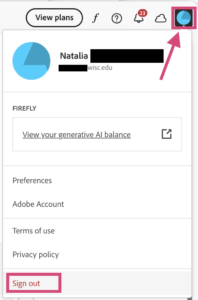
 - If you DO already have the Adobe Creative Cloud App downloaded to your computer (i.e. from a previous 7-day free trial or personal account), launch the app and click on the blue circle icon in the upper-right corner and click “Sign Out”. Sign back in using your wiscmail. Click on the “Company or School Account” option if it comes up.
Download the Adobe Software(s) You Need for Class
- Within the Adobe Creative Cloud App is where you can download softwares like Photoshop
 and Illustrator
- Open the Adobe Creative Cloud App on your computer and from the left-side menu click on “Apps”
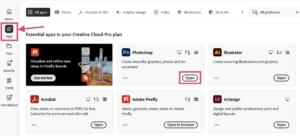
- From the Apps list, find the software you want to download and click “Install”. If you’ve already installed an app, it will instead say “Open”. Installation may take several minutes, depending on your computer. Note that with the UW-Madison license, you have semester-long access to ANY of these softwares, including ones you do not need for your course assignments.

Accessing Your Downloaded Software
Once you’ve downloaded the software you need for class, you will have to go through the installation process.
- Click on the downloaded file
- Follow through the installation process as requested by your computer
- After installation is complete, search for the application to open it. You can either:
- Use your computer’s search feature
- Open Finder (Mac) or File Explorer (Windows) and go to the Applications folder on your computer
- Or open the Creative Cloud App and from the Apps menu, open the software you’d like.