Cool Tools: Tools and Tips to Help You Succeed

UW-Madison Web Resources
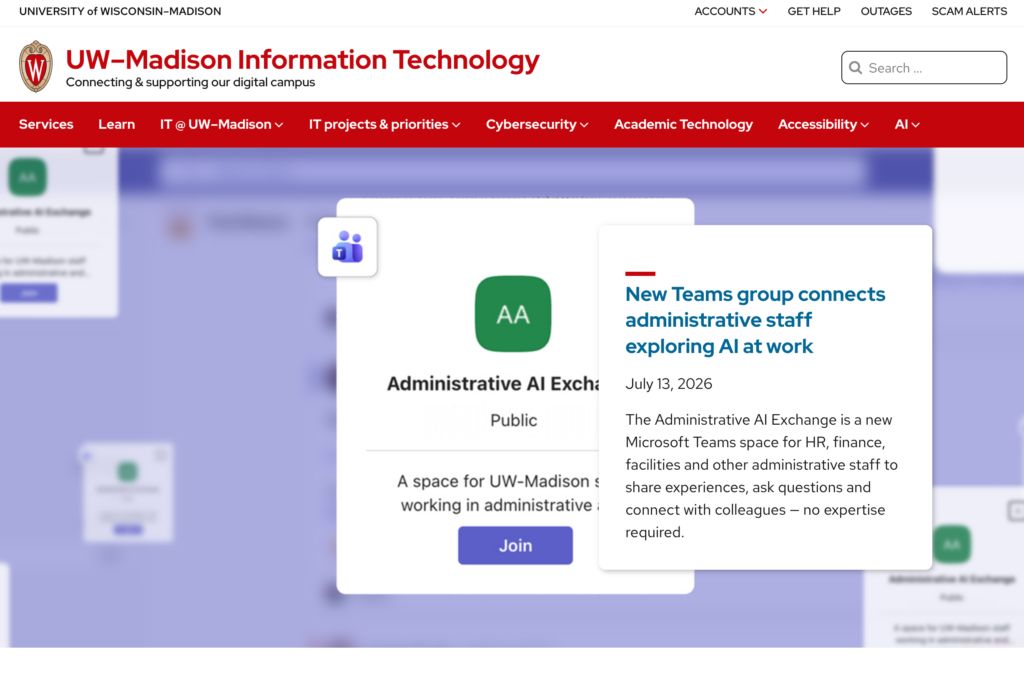
UW-Madison IT Home Page
A great place to start when trying to figure out how to do anything technology related on campus.
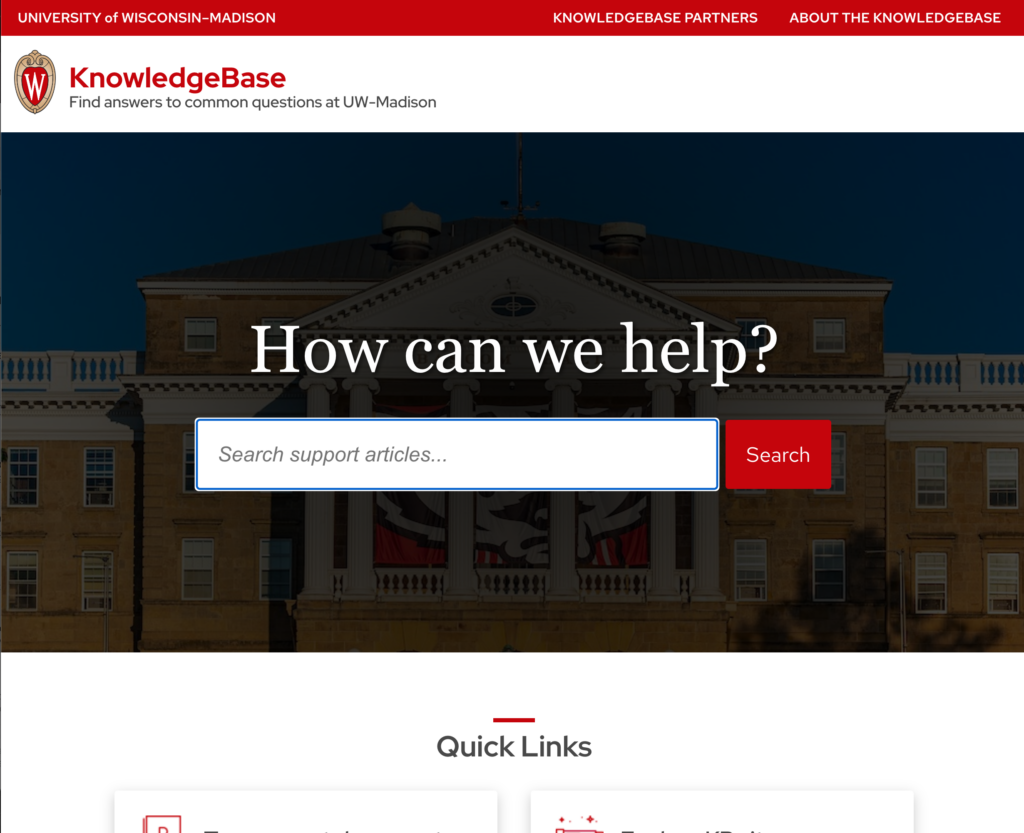
UW-Madison Knowledge Base
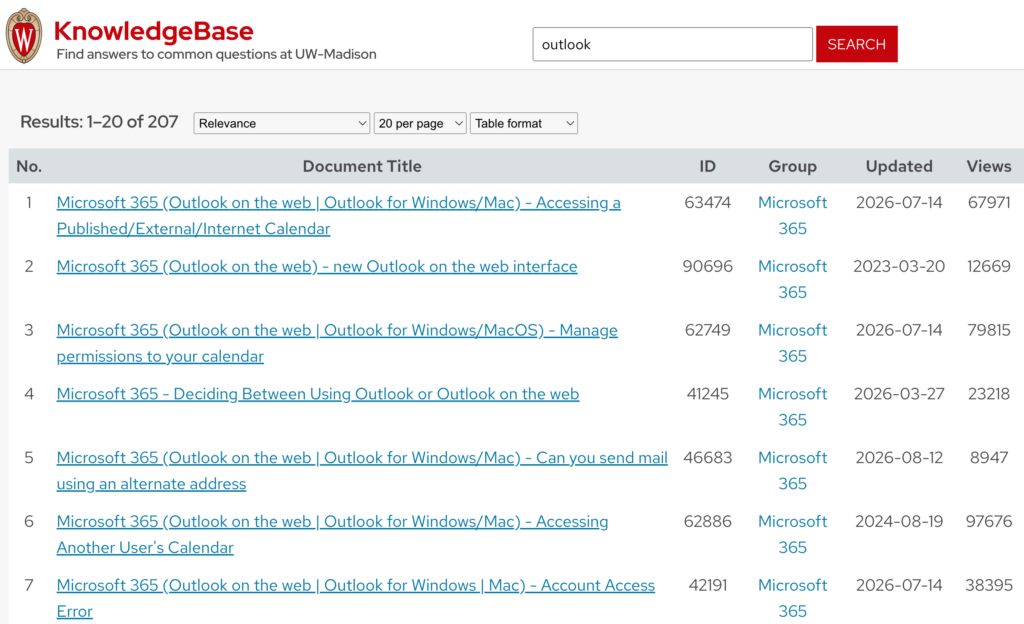
The Knowledge Base hosts documents explaining how to do all kinds of tech-related tasks on campus (set up your campus email/calendar on your phone or tablet, connect to Housing printers, etc.). It can sometimes be a little hard to find exactly what you are looking for, but it is a comprehensive resource of technical know-how, and it’s a great place to start if you have questions but aren’t sure where to look.
DoIT Help Desk
The DoIT Help Desk is a great way to get help setting up your devices, fixing and troubleshooting hardware and software problems and getting service for devices under warranty.
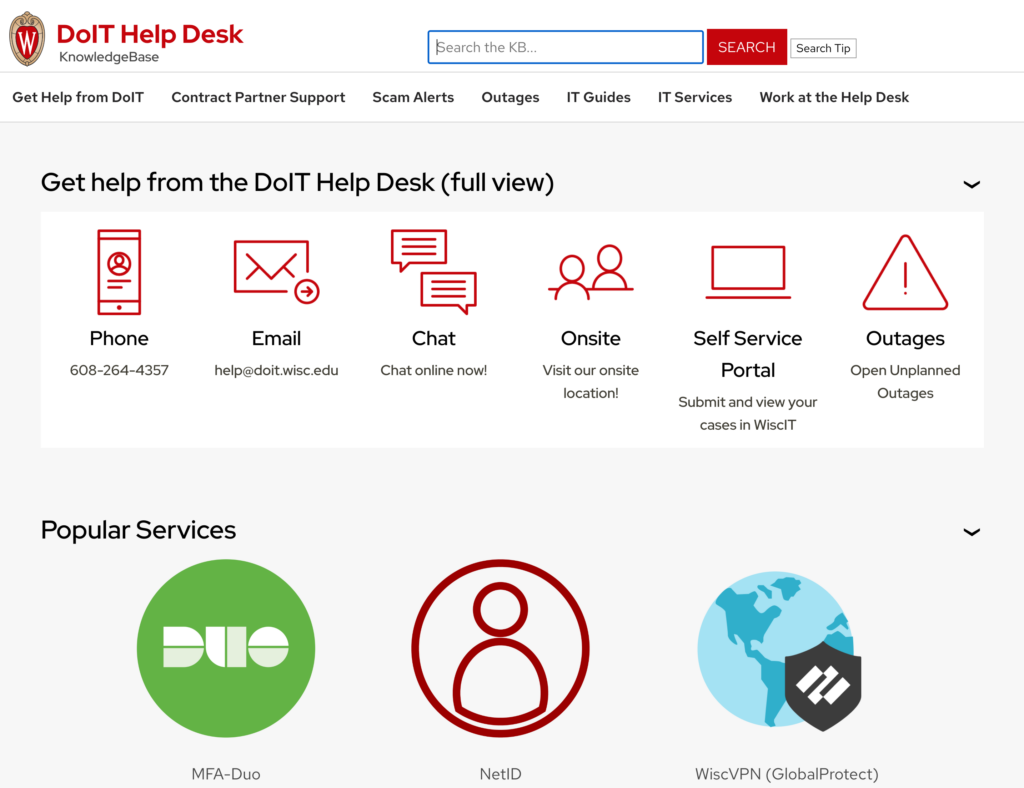
Help is available a variety of ways:
- Phone: 264-4357 (264-HELP)
- Email: help@doit.wisc.edu
- Chat: https://kb.wisc.edu/helpdesk/page.php?id=6454
- Walk-Up support at the DoIT Tech Store locations
Microsoft 365
https://it.wisc.edu/services/microsoft-365/
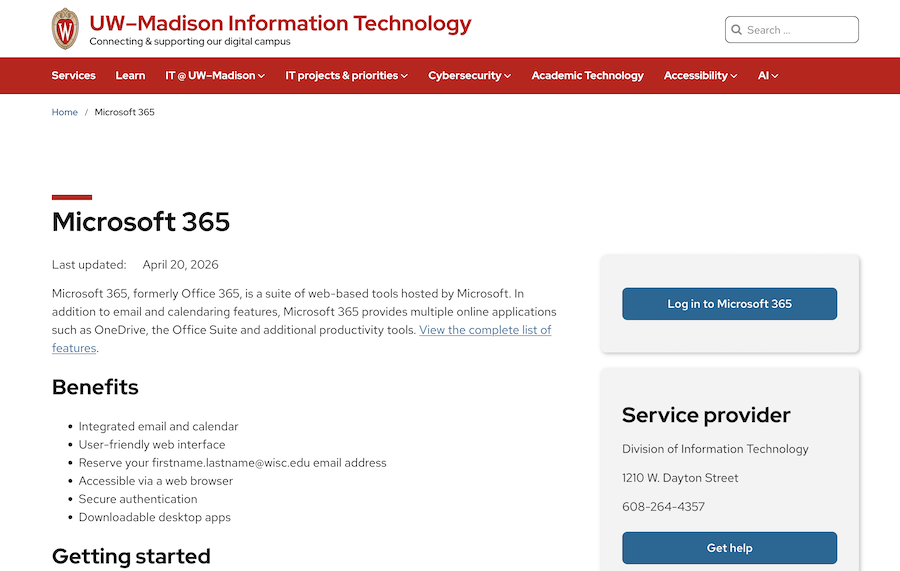
UW-Madison is a Microsoft-forward campus, and our enterprise-level tool set is built around the apps and integration points in the Microsoft ecosystem.
This includes licenses for apps like Word, Powerpoint, and Excel, productivity tools like Teams and Planner, as well as full access to Microsoft’s AI tool, Copilot.
WiscVPN
https://it.wisc.edu/services/wiscvpn/
VPN is a virtual protected network that secures your online connection whenever you are on unsecure or public wireless. Free and simple to install.
Many campus services can only be accessed with VPN active on your device – for example, editing campus websites built with WordPress.
After installing the client, simply log in with your usual NetID and password and you’re all set.
LinkedIn Learning
http://go.wisc.edu/linkedinlearning
Industry-leading online software and general skills training available at no cost to all UW-Madison students as well as faculty and staff.
If you are looking for a specific software program or topic, try searching for “[software] essentials”, e.g. “photoshop essentials”. The Essentials video series usually provide a good introduction to the programs without getting too complicated.
The huge amount of content is a great resource but can make it hard to know where to start.
The service tries hard to push users towards the less technical content, but it’s a really solid resource to learn new tech skills and software programs for no cost.
For more information about LinkedIn Learning (including how to link your UW account to your personal LinkedIn profile) visit the KB document here: https://kb.wisc.edu/21673
Qualtrics (survey tool)
https://it.wisc.edu/services/surveys-qualtrics/
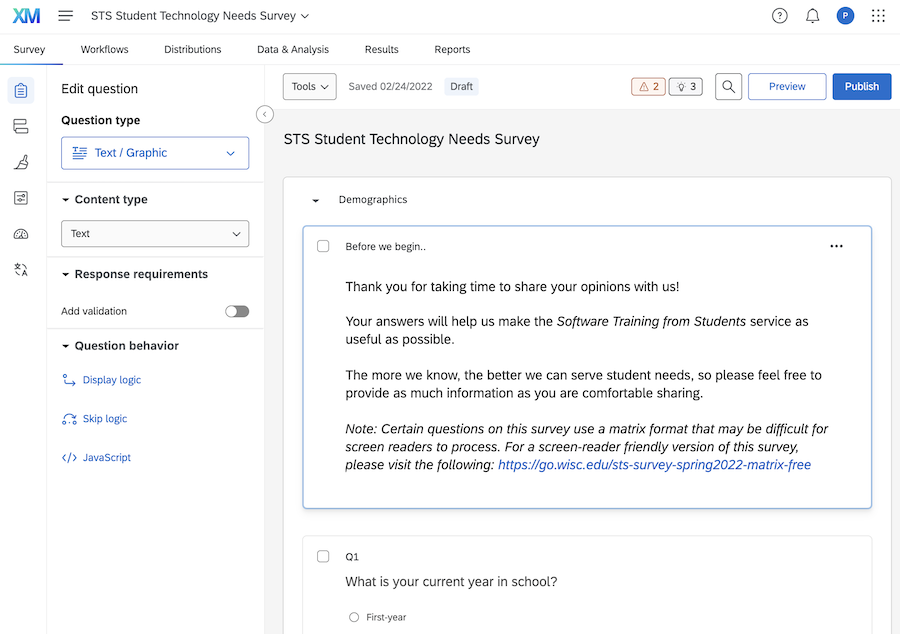
Qualtrics is a full-featured tool for creating, distributing, and analyzing results from surveys. It is available to all faculty, staff, and students at UW-Madison and is widely used by students and staff alike.
Hardware and Software
Campus Software Catalog
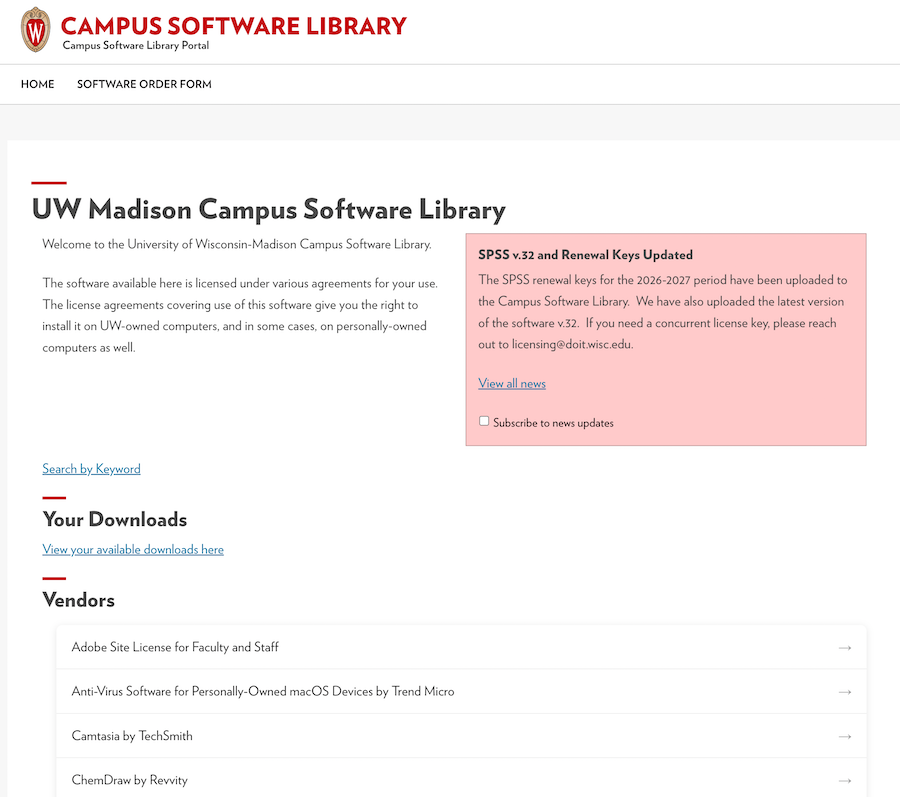
Access to all of the software that UW-Madison students get for free.
Available software includes:
- Microsoft Office 365 (Word, Excel, Powerpoint, Outlook, OneNote) apps
- MATLAB, R, Stata/SPSS, SAS
- Device protection tools
- Many others!
UW-Madison Equipment Checkout
https://it.wisc.edu/services/equipment-checkout/
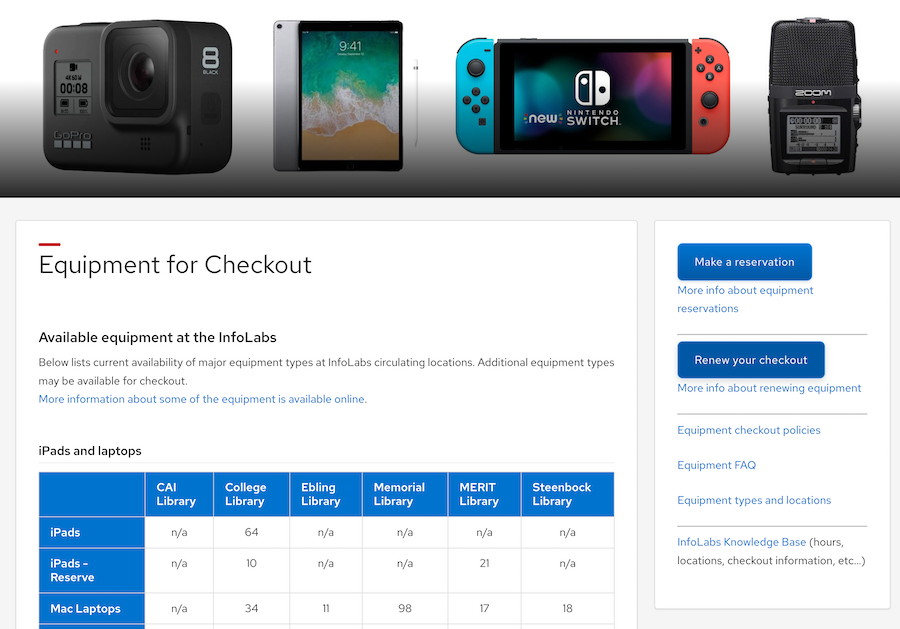
UW offers a wide range of equipment for rent, including dual-boot Mac/PC laptops (complete with a the full Microsoft and Adobe suites), iPads, video cameras, projectors, and audio recorders.
AlternativeTo
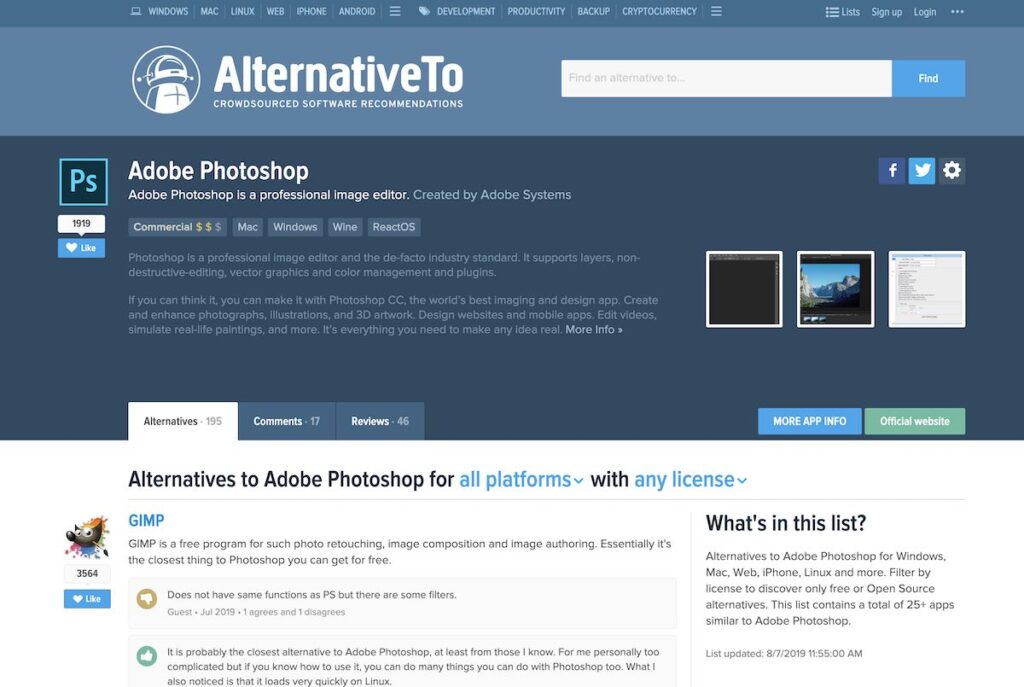
AlternativeTo is a crowdsourced database of alternatives to popular (and often very expensive) software titles like Adobe Photoshop, Microsoft Excel, as well as paid services like Netflix.
Most of the alternatives are free and open-source, and the listings include reviews and lists of pros and cons, which have been provided by real users with experience using the program.
Academic Tools
Canvas
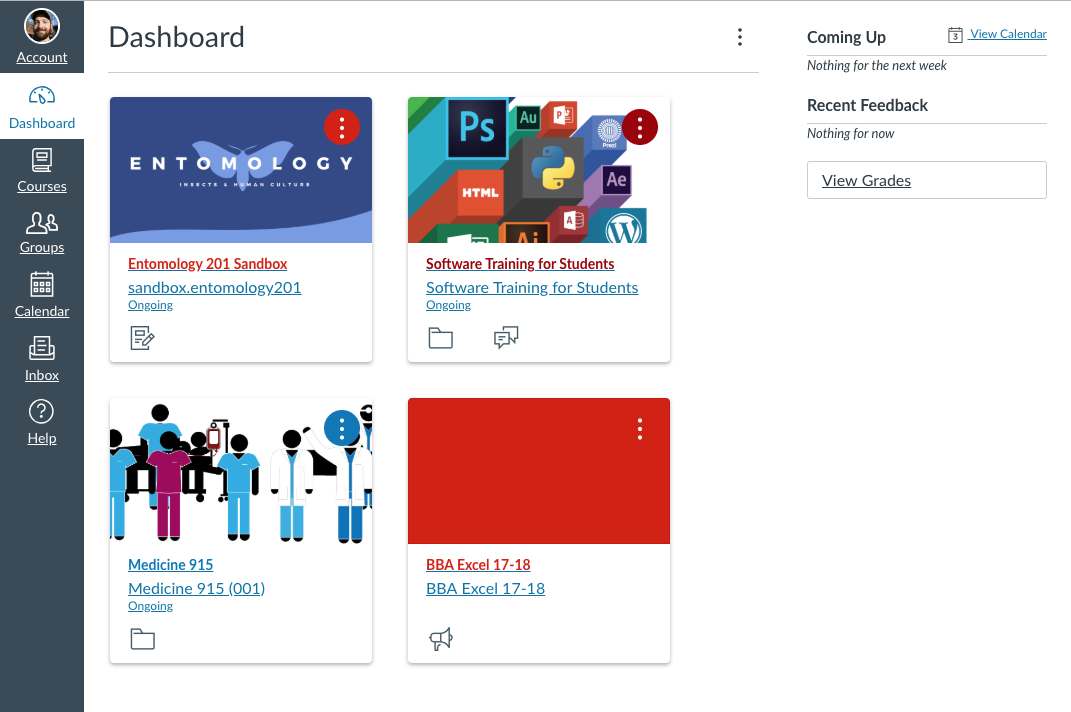
Canvas is the official Learning Management System (LMS) used by UW-Madison. It is used by instructors to post course content for their academic classes as well as by groups like STS for non-academic purposes.
The interface is pretty intuitive, but it is sometimes hard to find things because instructors choose to build and structure their Canvas course in a wide variety of ways.
If you ever need help figuring out how to use Canvas, the Canvas training course for Students provides a good overview for how to navigate the different parts of Canvas, and you can always schedule one-on-one help with Software Training for Students via our 1-on-1 Help service.
Kaltura MediaSpace
Kaltura is the official video and audio upload service supported on campus. If you ever need to host a video or audio project created for class, Kaltura is the place to go.
Piazza
Piazza is an online discussion tool that instructors often embed in their Canvas courses. It lets students and instructors interact via a familiar forum-like interface.
This tool is a great way to get help from your peers as well as get answers to class and assignment-related questions from instructors outside their designated office hours.
Learn@UW
https://it.wisc.edu/academic-technology/learnuw-learning-technologies/
The Learn@UW group (part of Academic Technology within DoIT) maintains a large suite of add-ons and supplemental tools that instructors cab add to their Canvas courses.
AI Tools and their Use
The rise of AI is shaping up to be one of the most consequential human technologies to date. While there are lots of ways it can be used, it’s important to do so in an informed way.
What exactly IS AI?
The term “artificial intelligence” can mean a lot of different things in different situations.
One type of AI is called Machine Learning. This is the kind of tool that can be used to find patterns in data that may be difficult or impossible for a human to do at the same scale. This includes things like identifying abnormal cells in medical fields, identifying faint radio signals in astronomy, improving imagery in orthopedics, and more.
When people say AI today (at least, as of Fall 2026), most of the time, they are talking about generative AI, usually in the form of a Large Language Model (LLM).
What is an LLM?
At its core, a large language model is basically a set of digital coordinates mapped onto a set of training data. The model processes a large amount of information – say, words in books, text scraped from web page, written conversations, media transcripts, etc. – and creates a “map” of how each individual word relates to other words.
While the location of an object in the physical world typically has 3 physical coordinates that determine its proximity to other objects (one for each X, Y, and Z axis), a particular word or “token” in the LLM can have hundreds or thousands of virtual coordinates that determine how close it is to other tokens in the model.
The model then uses statistics and probability along with different values called weights to determine how it should move through these coordinates. As it moves through the data, it builds a chain of tokens, which it then provides to us as words, phrases, sentences and paragraphs.
The models don’t actually KNOW anything – they are basically providing a statistical guess of how words go together, which they devise based on the relationships it found in its training data and the weightings that influence how it moves between points.
Who is creating these LLMs?
Most of the LLMs commonly in use today are developed and provided by large, for-profit corporations. These include ChatGPT (OpenAI), Claude (Anthropic), Gemini (Google), Copilot (Microsoft), and Grok (Twitter/X). These typically run in large data centers, which can consume large amounts of electricity and water as well as produce large amounts of environmental and noise pollution.
There are also open source models that can even be run locally on your own machine, as well as more efficient models that are in development around the world.
Are AI tools a good fit for my work?
The answer: it depends! AI can be a helpful tool in various parts of the academic experience, but it is important to know what is actually going on before making that choice.
When SHOULD I use AI?
- When the correctness or factual accuracy of your work isn’t the primary focus. Because the tools are simply doing math on data, they don’t actually “know” whether their results are true – only whether they are statistically similar to what it’s seen in its training data. That means they are prone to “hallucinations”, which is the lightly euphemistic term the AI industry has adopted for false information. Using an AI to brainstorm, come up with simple ideas, or explore different topic areas can be helpful, but it’s important to recognize that AI results can be incorrect or misleading.
- When you already know enough about the topic to identify inaccurate information. AI can provide results that sound convincing even when they are not true, and if you are not already familiar with the topic you are asking about, you may end up taking inaccurate information as fact.
- If you want to rephrase your own writing to use more generic-sounding language. Because AI is based on processing and re-working existing writing, its output tends to be the “average” of the data it is trained on, which often can feel generic or nondescript. This can be helpful in some cases, such as for someone whose primary language isn’t English who would like their written output to more closely resemble typical English usage, but it can also strip writing of personality and lead to output that can be tiring to read in large quantities.
- If you are comfortable losing the skills that you are using AI to replace. AI can save you time and energy, but it also comes at a cost: if you are using it in place of your own human abilities, those abilities will begin to atrophy over time due to disuse. There are studies that show that while use of AI correlates with good grades when used to complete work, it also correlates with reduced cognition as users rely on the tool more and more.
When SHOULDN’T I use AI?
- If you need factually accurate information, such as for things like medical guidance or legal advice. AI results convincingly present themselves as correct, and in many cases provide an impressively good synopsis of available material on a given subject, but they also can contain incorrect inferences, a loss of nuance, and sometimes straight up misinformation presented alongside facts.
- If you need sources that you plan to use as citations in research. LLMs have a history of fabricating research results that appear authentic but do not actually exist, so if you plan to use any AI-generated citations, be sure to confirm that the sources they are citing are in fact real items that exist.
- If you need meaningful feedback or criticism about your work. AI does not actually “read” work the way a human does: it can provide a response that feels mostly similar to something a real person might offer, but it is not actually based on the content of your writing. Additionally, many models are tuned specifically to provide emotional validation and affirmation to users regardless of the content in question, so they may support the user’s ideas even when the user is plainly incorrect, and may encourage the user’s plans even when they may be making decisions that are unsound or even dangerous.
- If you are working with sensitive data or have data that should not be shared with people outside your research team. You should assume that your prompts and any other information that you submit to the LLM will be seen and used by people you did not intend. Prompts are almost always retained so they can be accessed by the company if needed (for example, if subpoenaed by a court in a legal case), and any information you submit will almost certainly be incorporated into training data for future iterations of that model.
Are any AI tools provided by UW-Madison?
Yes! The current list of provided tools is available at https://it.wisc.edu/ai/
As of Fall 2026, Google Gemini and Microsoft Copilot are the main general purpose LLM tools provided by campus. Campus also provides NotebookLM as a summarizing and synopsis tool, as well as AI-based transcription tools.
Many individuals and groups on campus pay for other tools as well, such as Anthropic’s Claude. Lower-priced models like Kimi and Deepseek are also becoming increasingly popular as the cost of tokens for the major players continues to rise.
Password Managers
1Password
KB Article on setting up 1Password
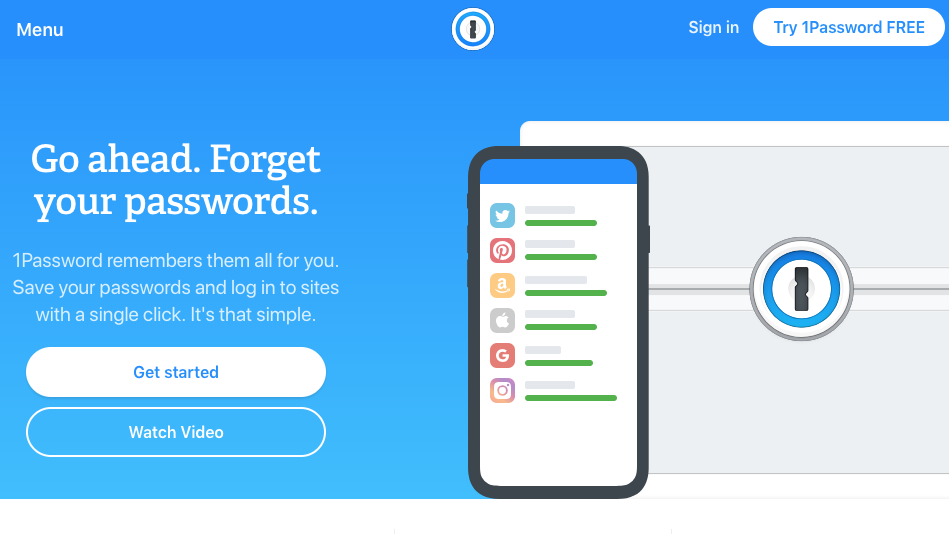
This is the University’s preferred password manager. This allows you to store all passwords in a secure vault, which you can then access from your desktop browser or mobile device. Has native Mac and Windows apps, browser extensions for all major browsers, as well as apps for iOS and Android.
LastPass
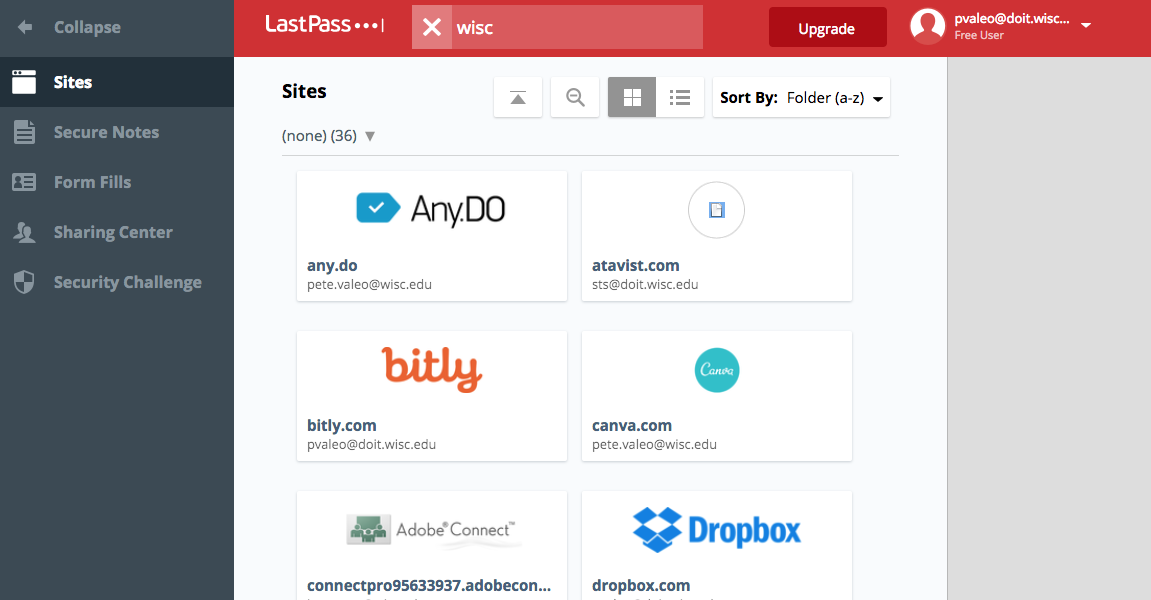
Another cloud-based password manager that lets you save login information, generate hard-to-crack passwords, and remotely log out and shut down access if your device is lost or stolen. This has a free tier as well as for-pay levels with more options.
Organization, Note-Taking, and Task Management
Online Storage
Keeping track of your digital life is a huge contributor to your academic success. UW-Madison providers a number of different sorage tools to help you maintain a semblance of order for all your files, documents, and other digital goodies.
Google Drive
Unlimited file storage and sharing, with excellent real-time collaboration/editing plus easy sharing with anyone on or off campus. You can upload files from your local computer for storage in the cloud and access them anywhere you can get online.
Drive also features Google Apps (aka G Suite), which is Google’s suite of productivity tools.
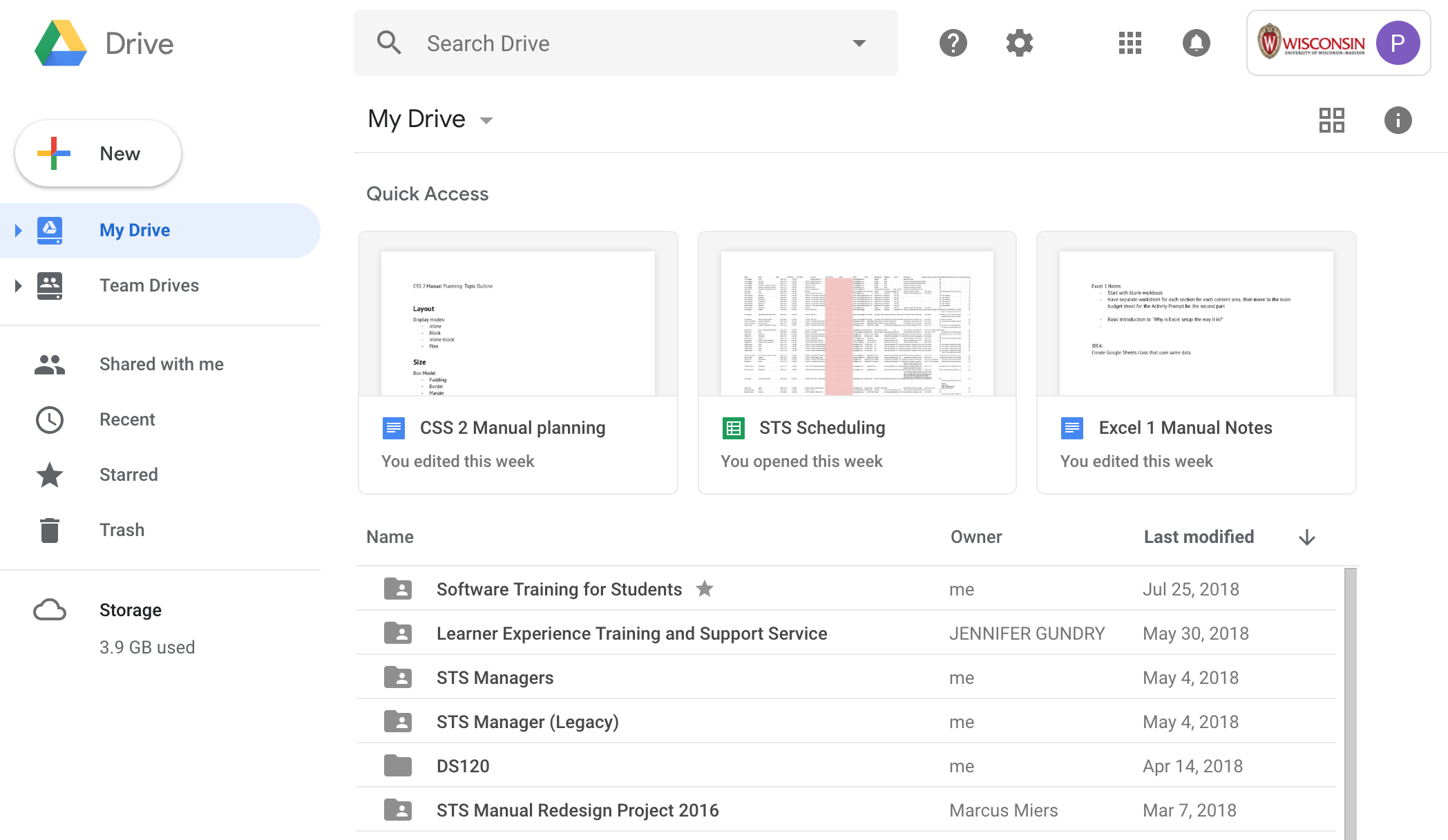
Pros: Excellent collaboration, unlimited storage, campus-supported, offers local file syncing
Cons: must be online to use, is tied to your NetID (meaning your files are no longer available after graduation unless you manually copy them all and share with your personal Google account).
Box
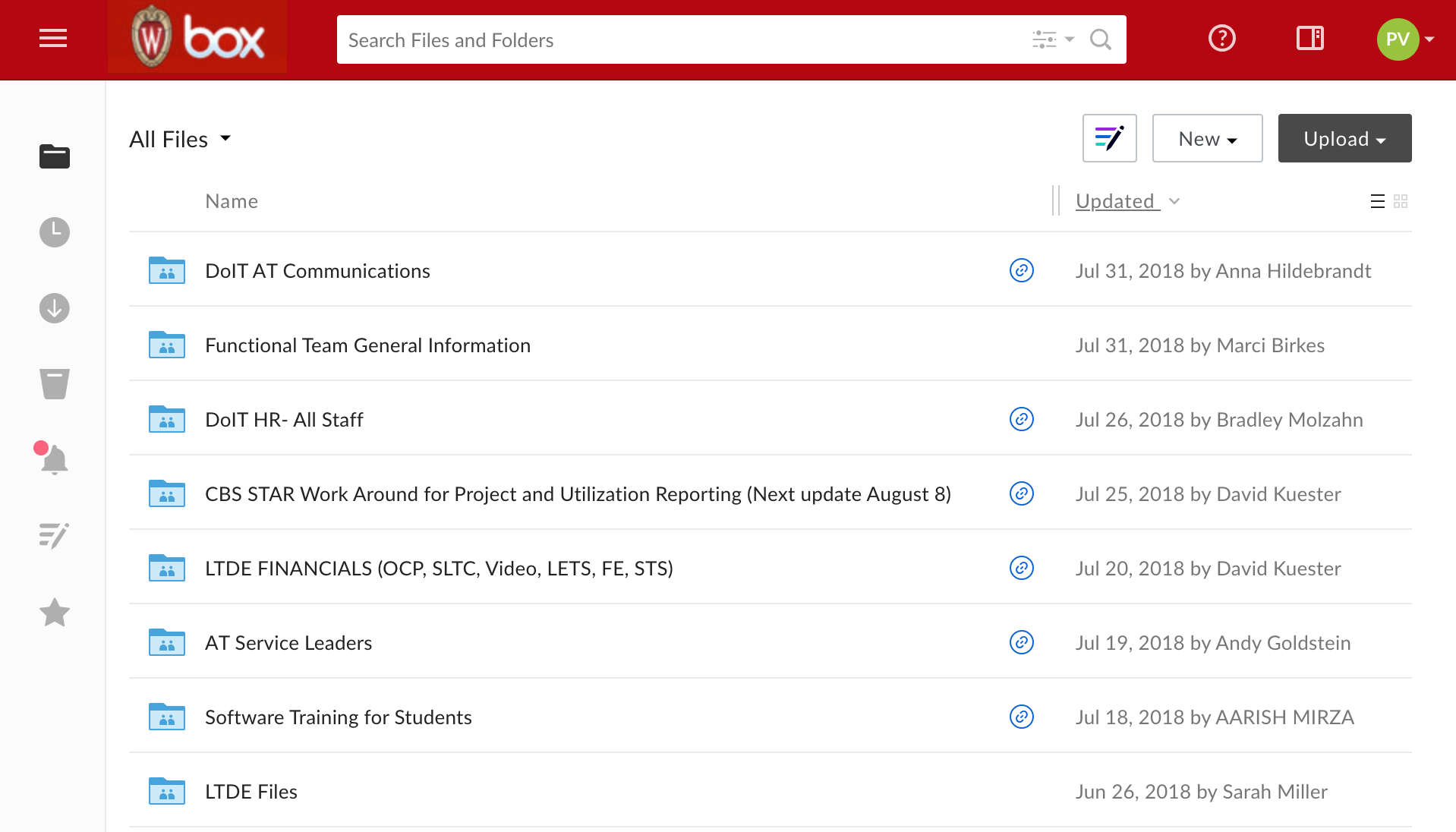
Another option for file storage and sharing, plus collaboration and online editing.
Pros: A high limit on storage, excellent file sharing and permission system, campus-supported, has local file syncing
Cons: Collaboration features can be clunky, file syncing is sometimes inconsistent, not available after graduation
OneDrive
http://onedrive.live.com
(sign-in using your NetID@wisc.edu email address)
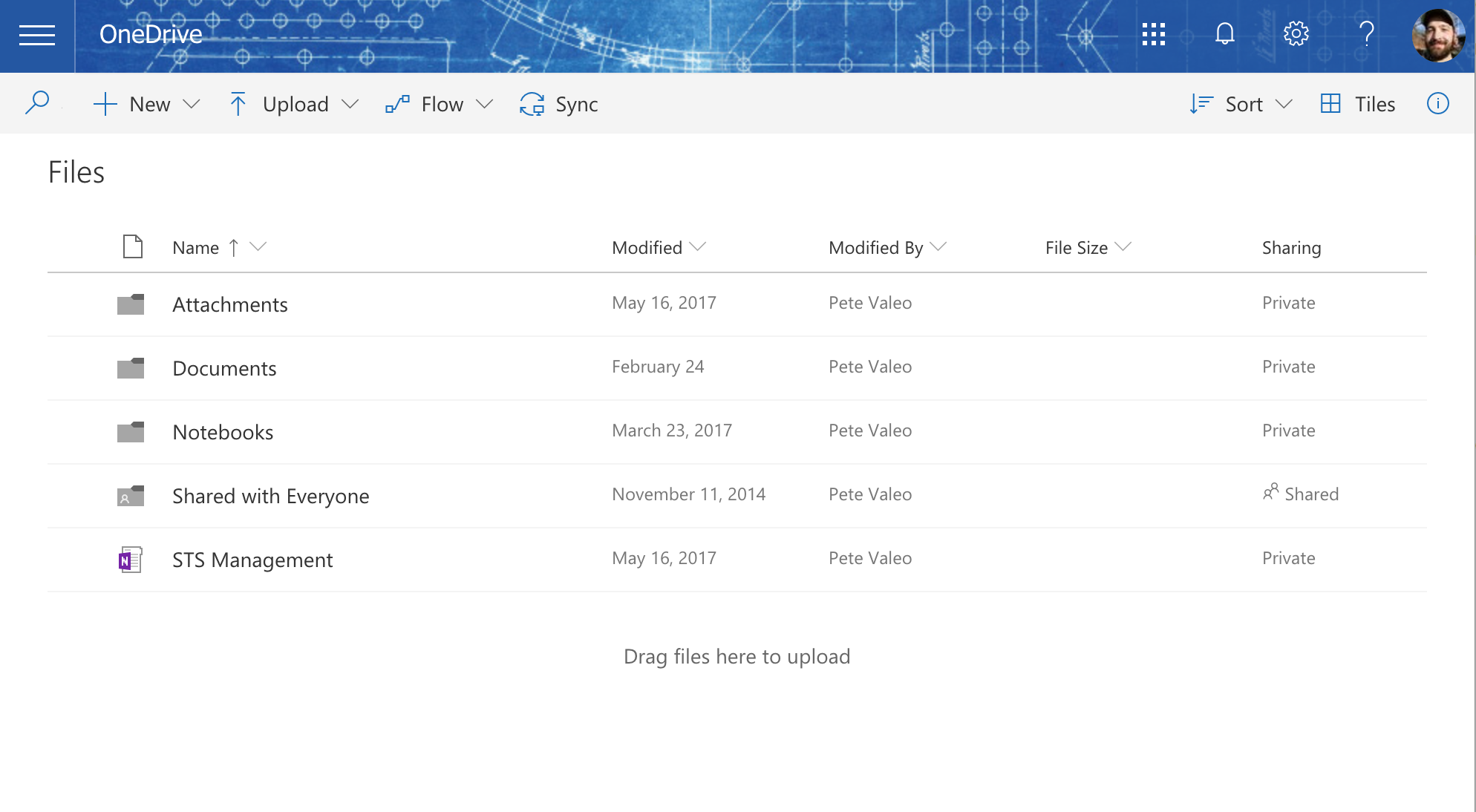
1TB of free storage that integrates directly with Office 365.
Pros: Interfaces directly with Microsoft Office, campus-supported,
Cons: Collaboration features not as streamlined as Google Drive, file syncing can be inconsistent, not available after graduation
Note Taking and Task Management
Staying on top of your tasks is another key component of succeeding in academia. There are many different tools available – both provided by campus and not – to stay on top of the mountain of to-dos and keep notes on your various academic adventures.
OneNote
https://onenote.cloud.microsoft/
OneNote is Microsoft’s note-taking solution. It integrates seamlessly into the rest of the Microsoft 365 tool set and lets you access notes anywhere. You can also include PDFs, screenshots, and other file types in your notebooks.

Google Keep
Google’s take on notes and task management. Login using your NetID@wisc.edu to set reminders and share notes with others.

Microsoft Planner
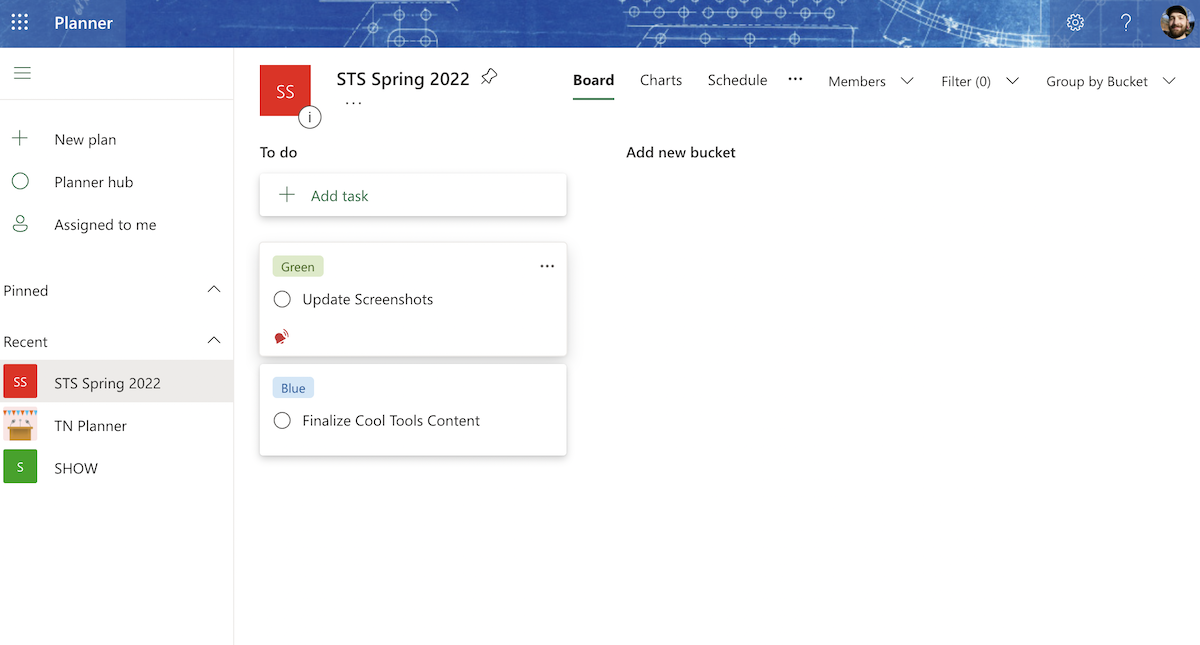
Planner is a simple-to-use tool for project management that integrates with the Microsoft tools that are used elsewhere on campus.
Asana
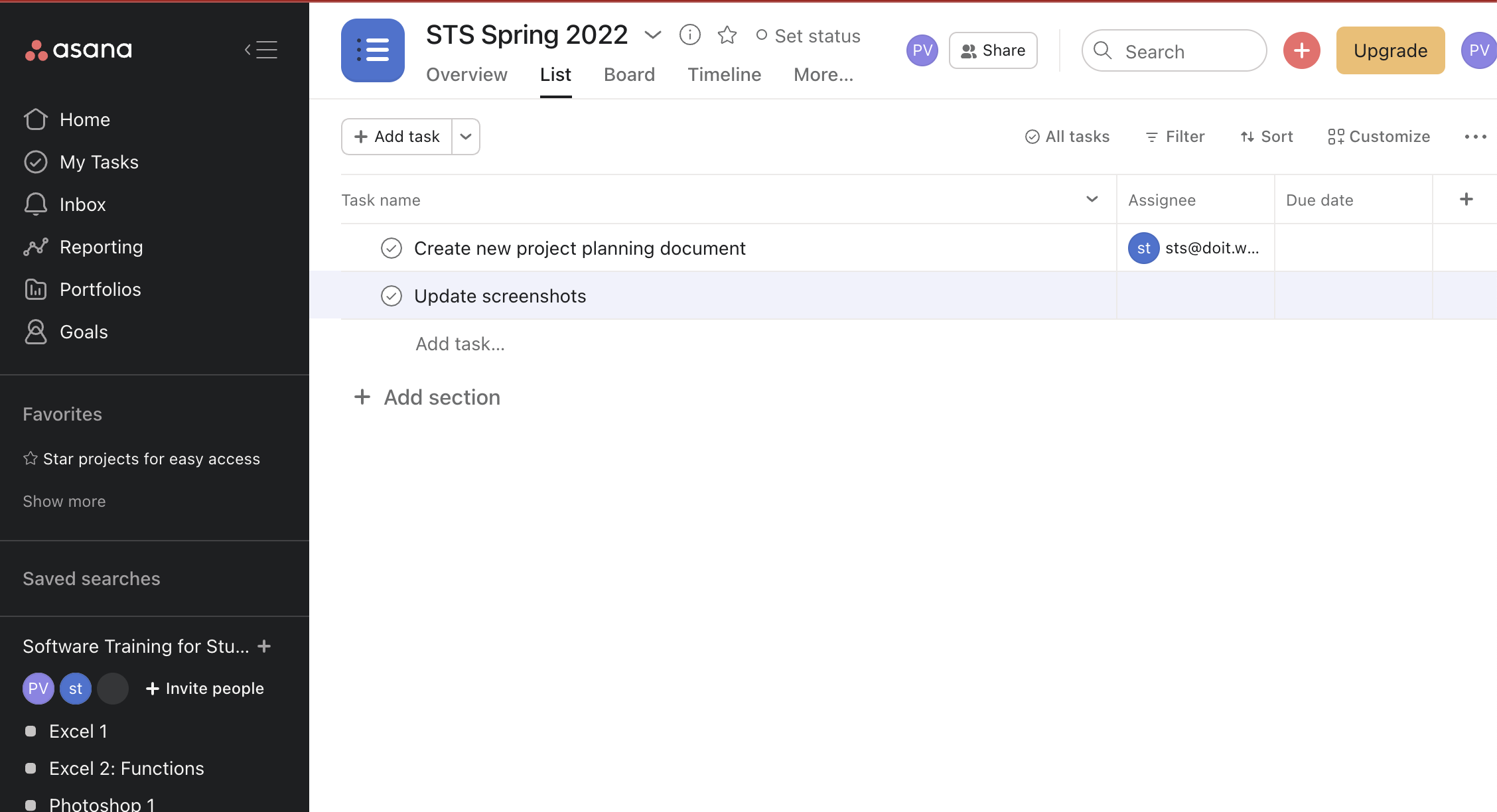
Another tool for project management that offers a variety of ways to create and assign tasks, as well as share projects with others. Asana is not officially part of the UW-Madison software tool set but is free to use for small groups.
Trello
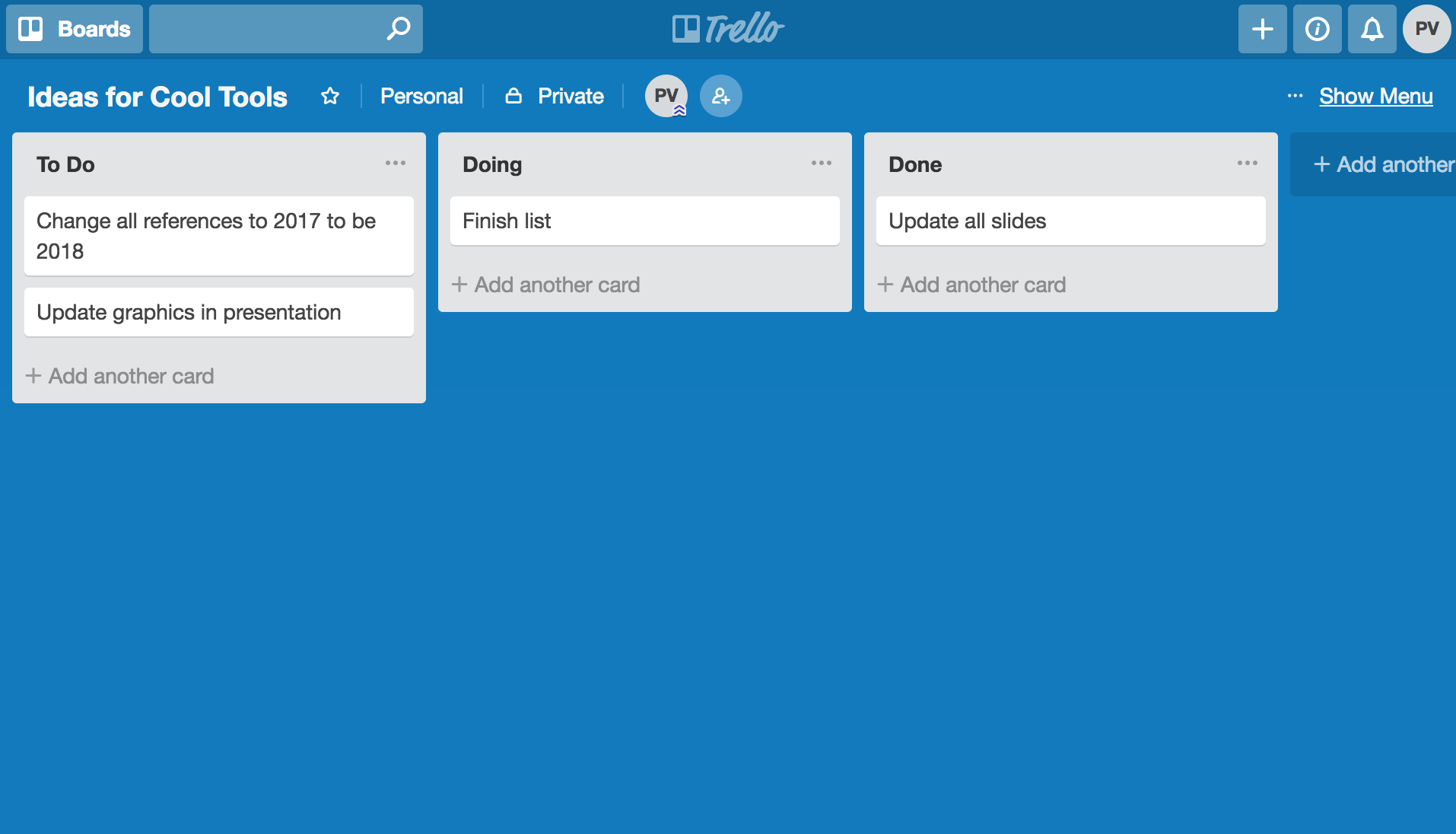
A simple-to-use tool for project management with a straightforward card-based interface that allows easy collaboration. Assign tasks and change status with simple drag-and-drop mechanics.
Todoist
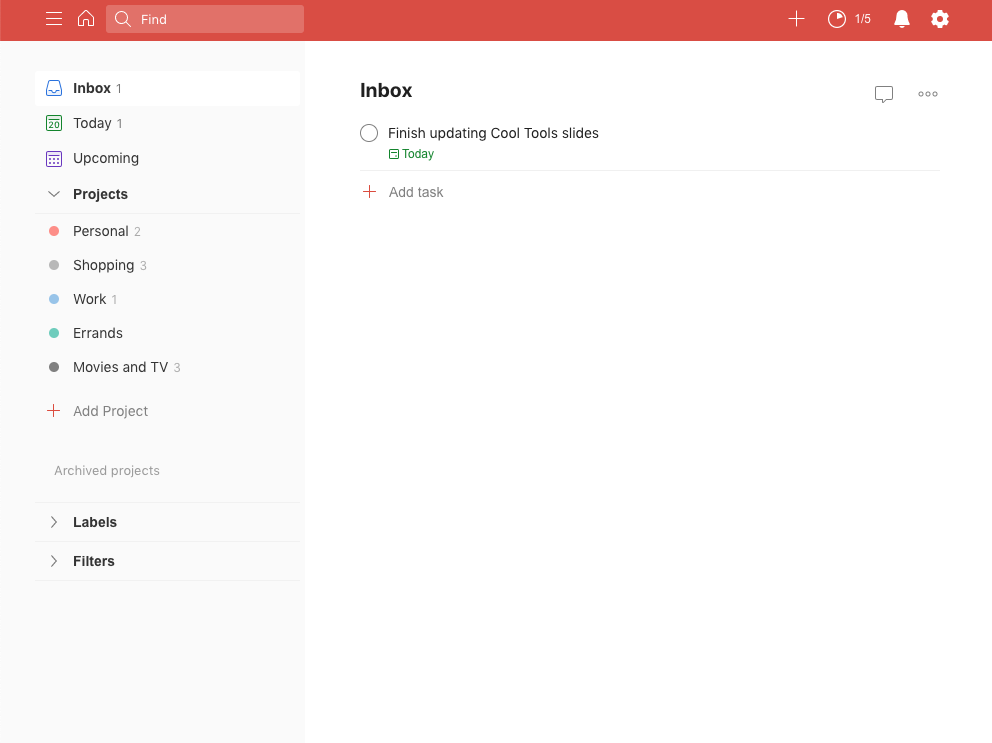
This is a web-based tool that allows you to easily create and manage a to-do list.
Notion
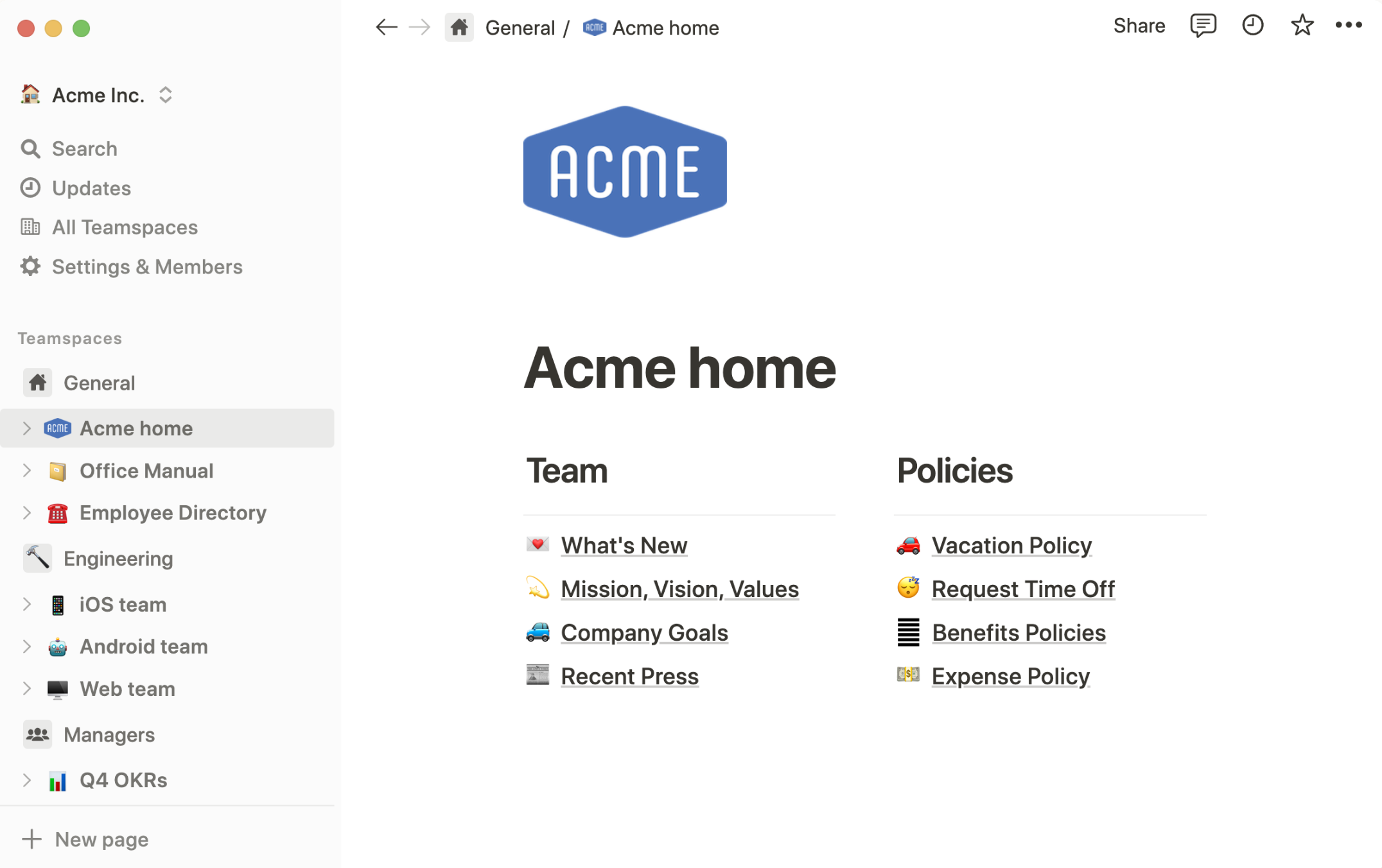
Notion is another organization tool that includes note-taking, document management, and to-do list project management options, but it has leaned heavily into “agentic AI”, meaning you tell their AI tools what you want done and it will try to take care of them for you.
Notion is free for a single user with limited AI and tooling options.
What Happens To My Data After I Graduate?
Any data you save on campus-provided tools like Google Drive or Box will eventually be deleted after you leave the University.
This Knowledge Base article provides more information about what happens to the digital files you store on campus-provided services after graduating or leaving UW-Madison and offers suggestions on ways to save your work.
Writing Tools and Citation Management
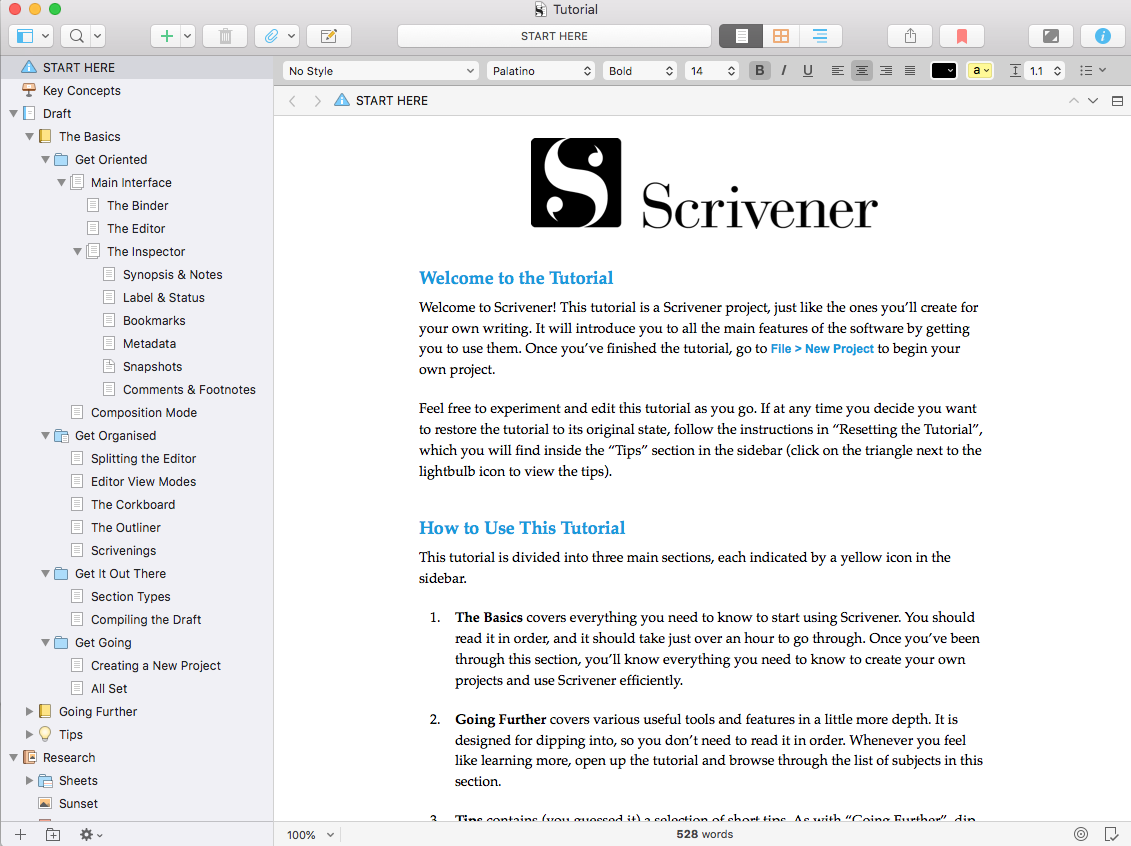
Scrivener
https://www.literatureandlatte.com/scrivener.php
An organizational tool that helps manage and streamline the writing process for long, multi-part papers.
Keep track of research documents, tag, sort, and rearrange parts of your paper without getting lost in the copy-paste trap in Word.
Citation Managers
Why should I use a citation manager?
Citation managers like Zotero and EndNote make the process of long-form academic MUCH simpler. They help keep track of your sources, manage formatting, and can generate bibliographies with a single click.
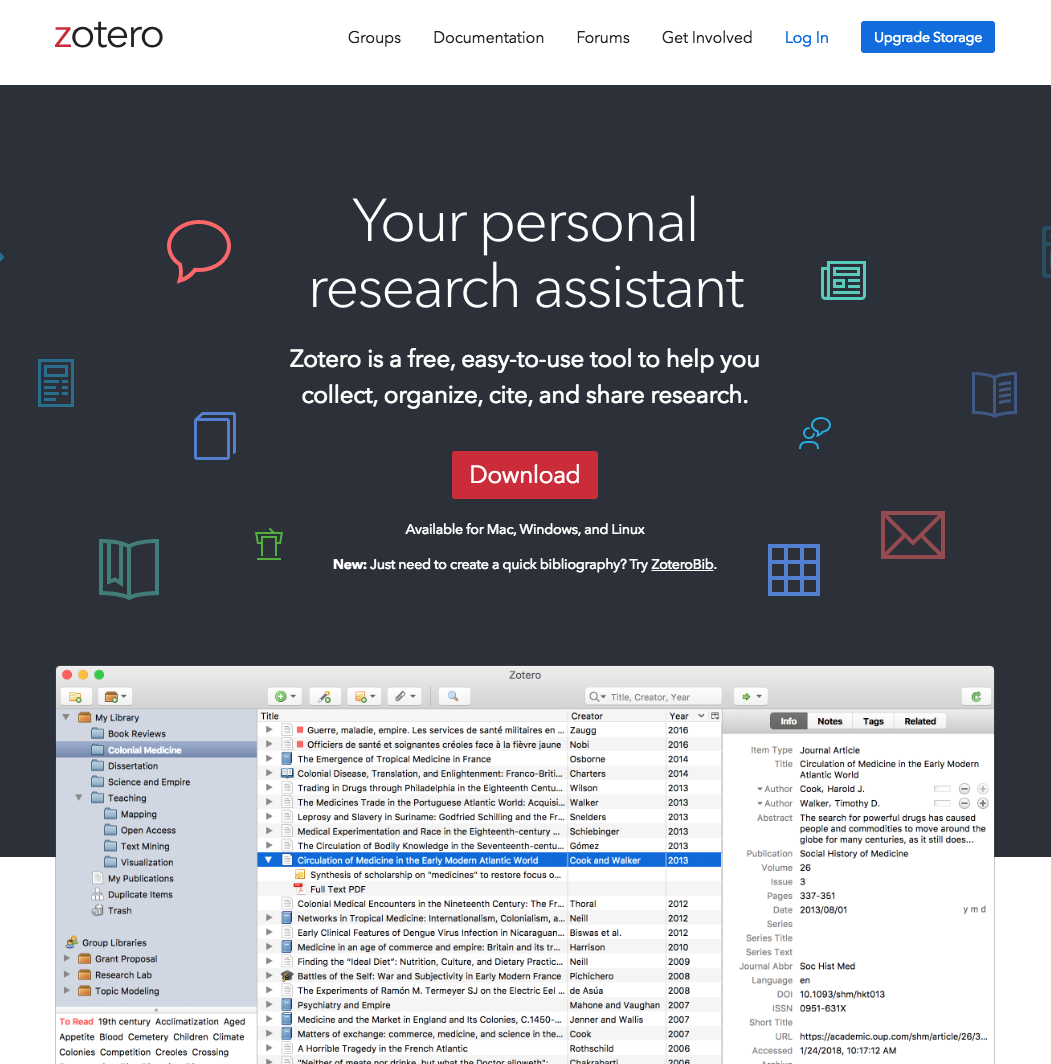
Zotero
A free citation and research management tool with plugins for Word and Google Docs as well as connectors for Chrome, Firefox, and Safari. Save scholarly journals, research articles, blog posts and more into the preferred citation format of your choice right from your web browser – even for journals that require UW-Madison credentials to access.
As you add to your collection of resources and references, you can easily export your cited sources directly for use in Word or Google Docs with only a few clicks.
EndNote
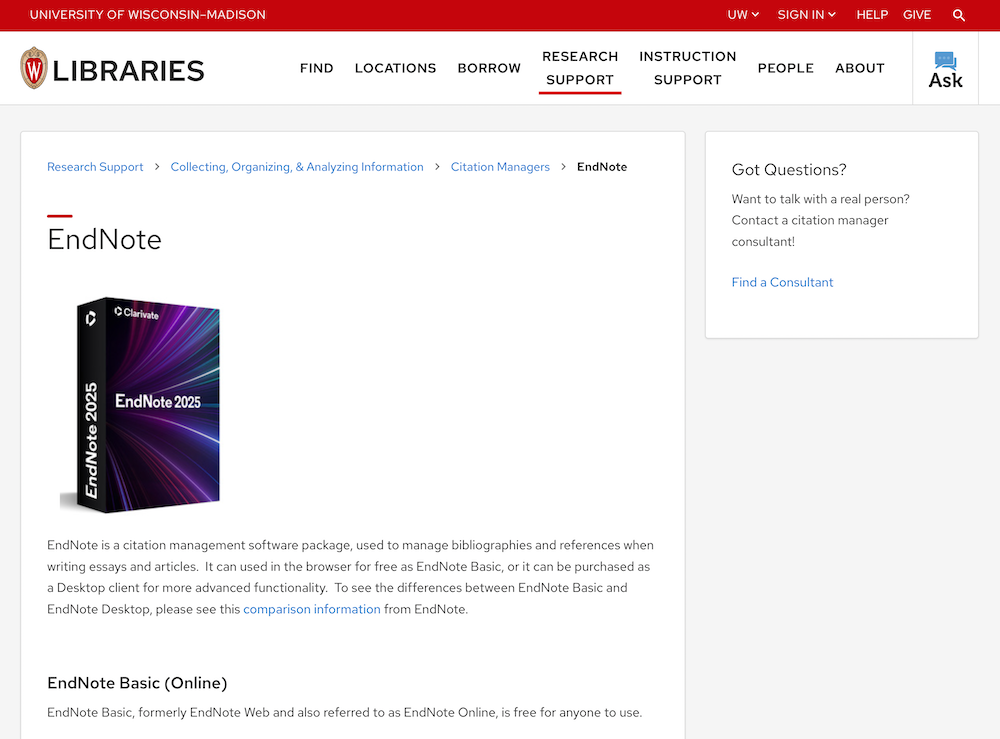
UW-Madison Libraries page on EndNote
Create research collections with references to articles, journals, books, etc. and easily export citations as a list or bibliography. Create reference groups and share them with collaborators. Integrates with Word.
This is a paid service, but UW-Madison students can log in and use the Basic level for free as long as they are students.
Mendeley
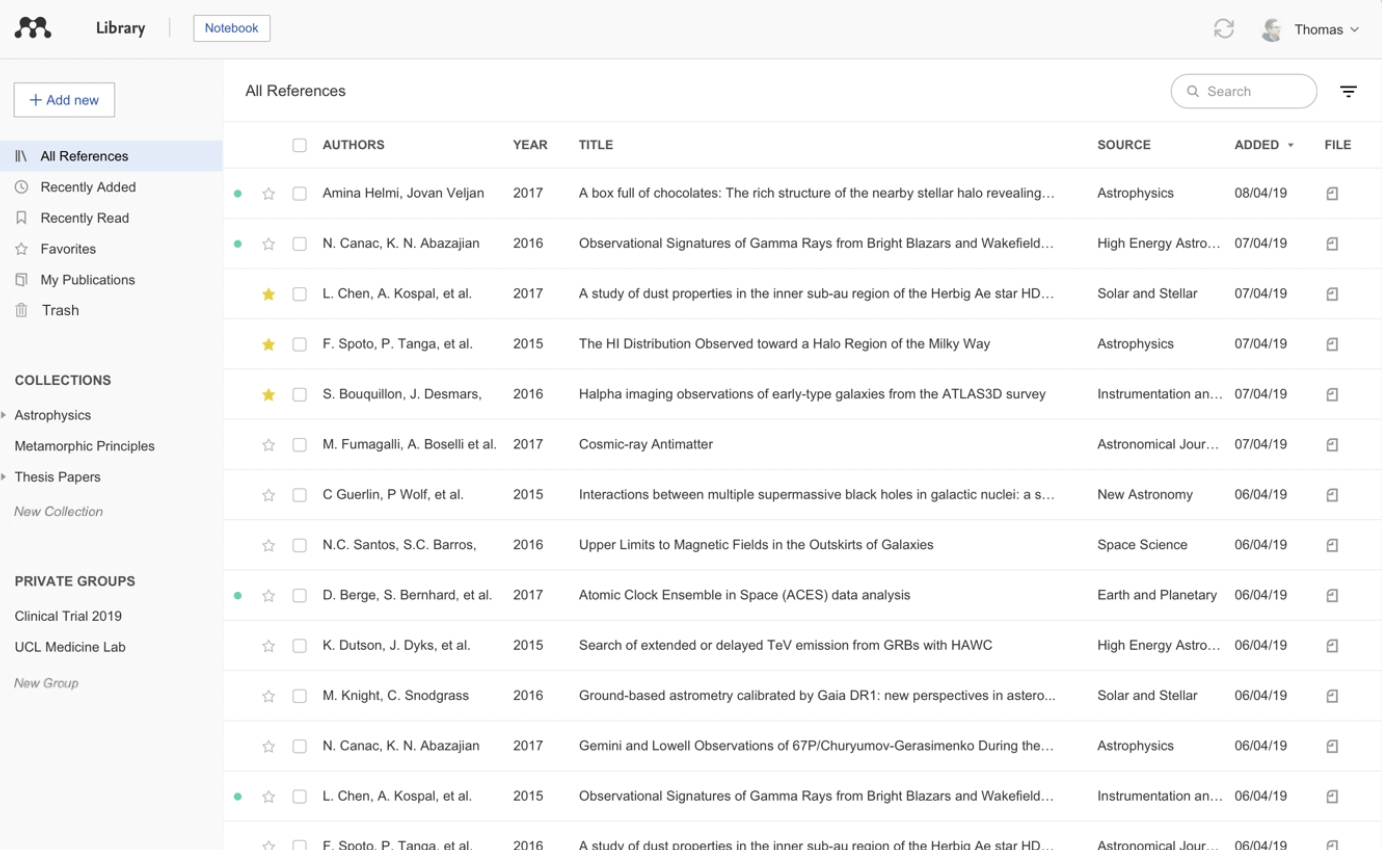
Mendeley is a web and desktop-based citation manager. With a free version of Mendeley, you receive 2GB of online storage space for PDFs and document attachments and one private group with up to three members.
Mendeley is not supported by UW-Madison libraries, but students can use it if they prefer its workflow to Zotero or EndNote.
ZoteroBib
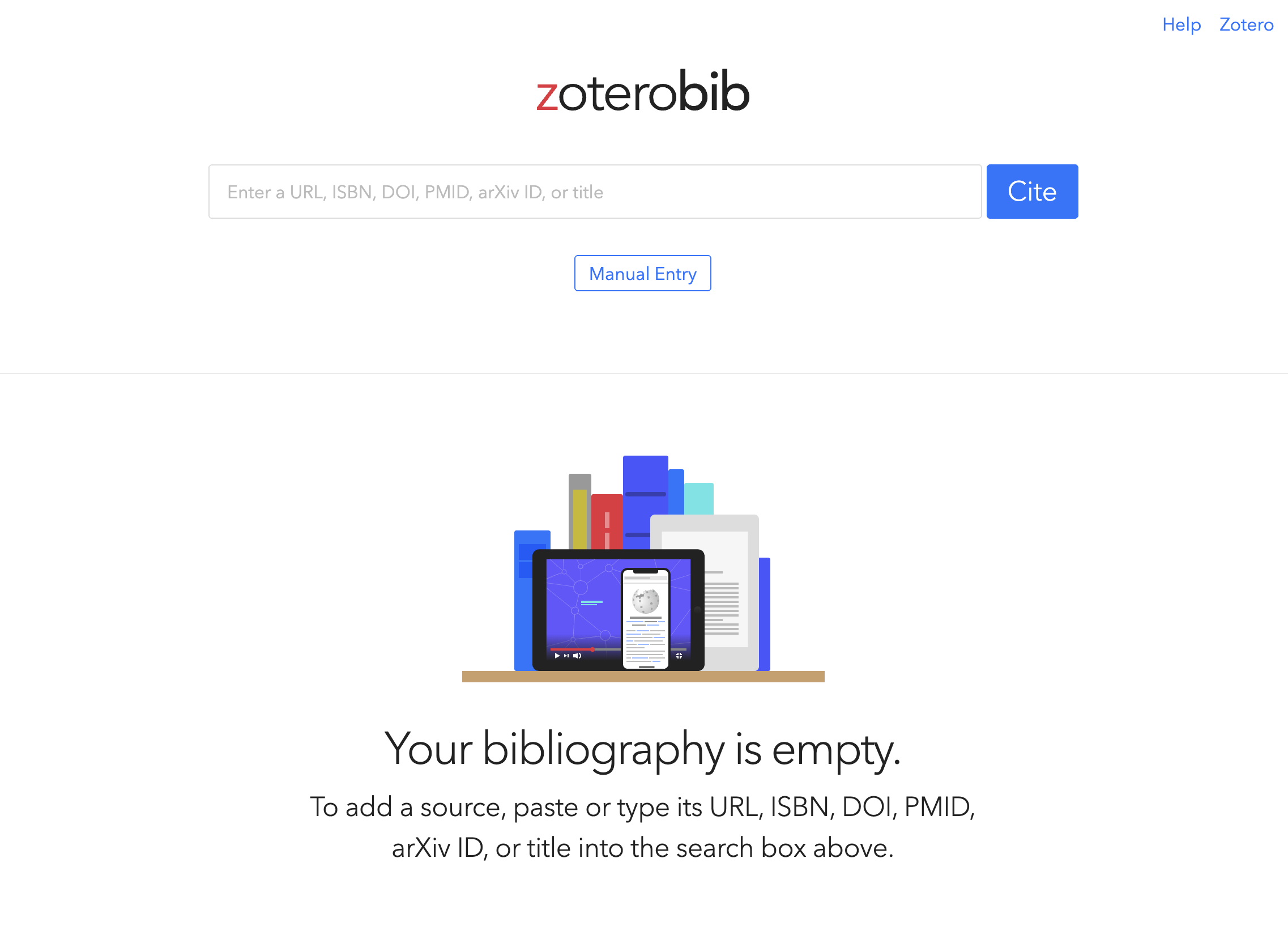
Related to Zotero, this tool lets you Enter a book, website, article, or journal and automatically export citations in MLA, APA, Chicago formats and more without having to make an account or download any apps.
Citations live in a temporary list in your browser until you are ready to export them. This is a great way to quickly get the correct formatting without the hassle of importing it into your citation manager.
UW-Madison Writing Center
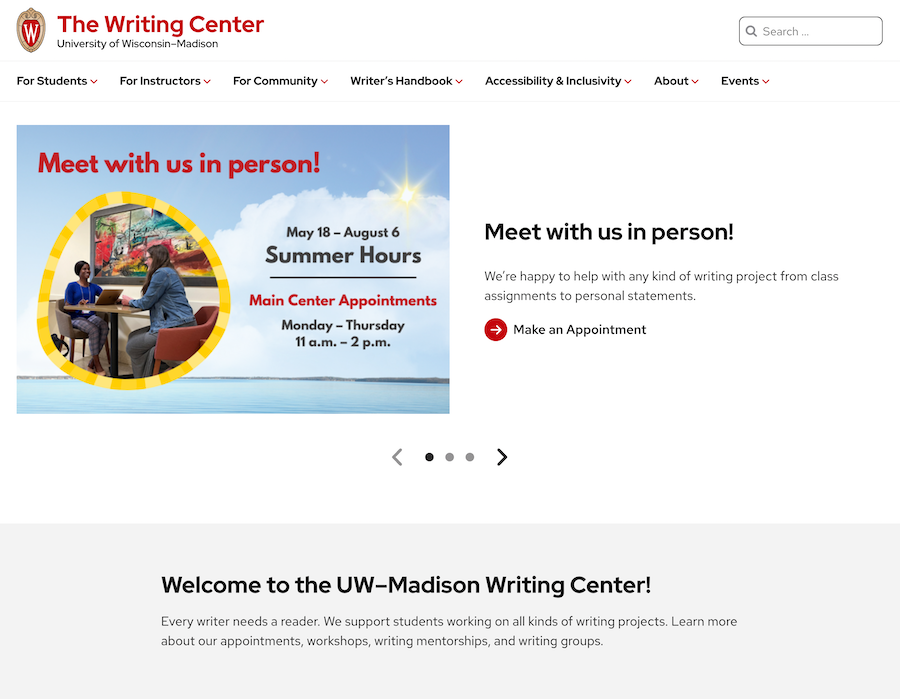
The Writing a free service available to all UW-Madison students offering writing help (editing, style, citations, project management, etc.) for any writing project (even things like grant proposals and applications).
UW Libraries and Library Search
https://search.library.wisc.edu
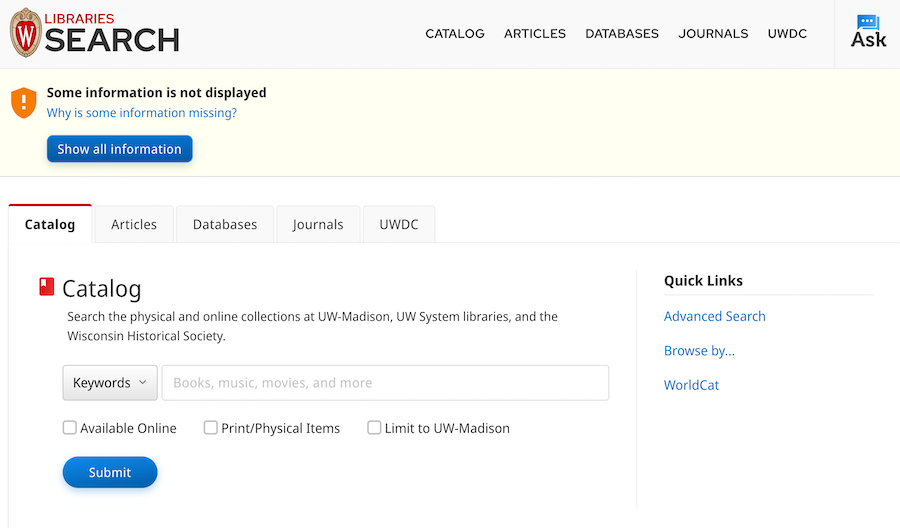
The libraries on campus have a huge number of resources students can check out or reference – books, multimedia, video games, even LPs – and give you tools to make it easy to find what you need. You can also get real-time help from a librarian via chat, phone, or in-person.
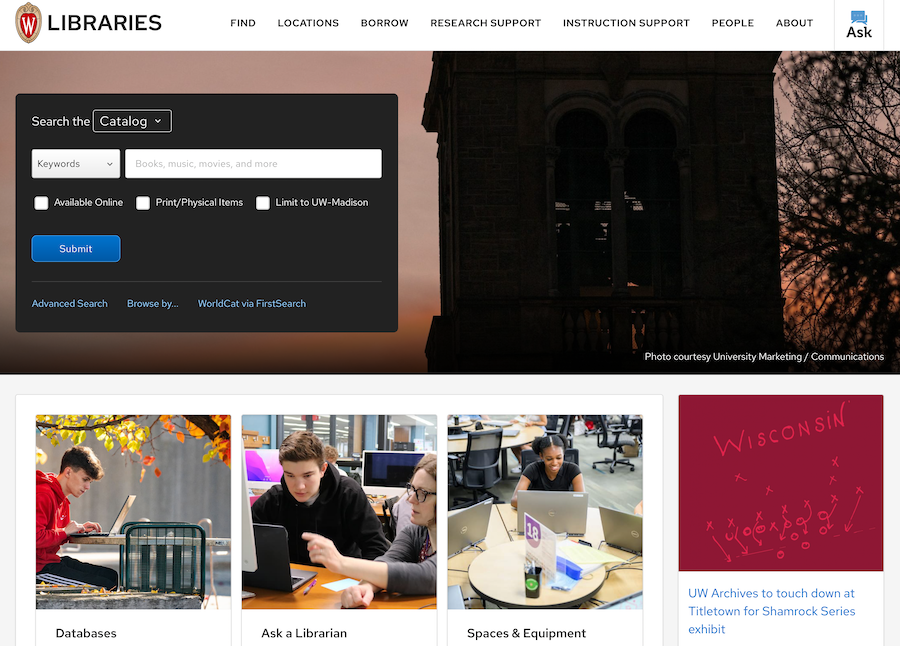
The Catalog/Article/Database/Journal Search tools make it easy to find books and articles related to your research topic. You can filter by peer-reviewed, online access, full-text-only, and more, and retrieve many sources and databases right from your browser via NetID.
UW-Madison Ask A Librarian
https://www.library.wisc.edu/help
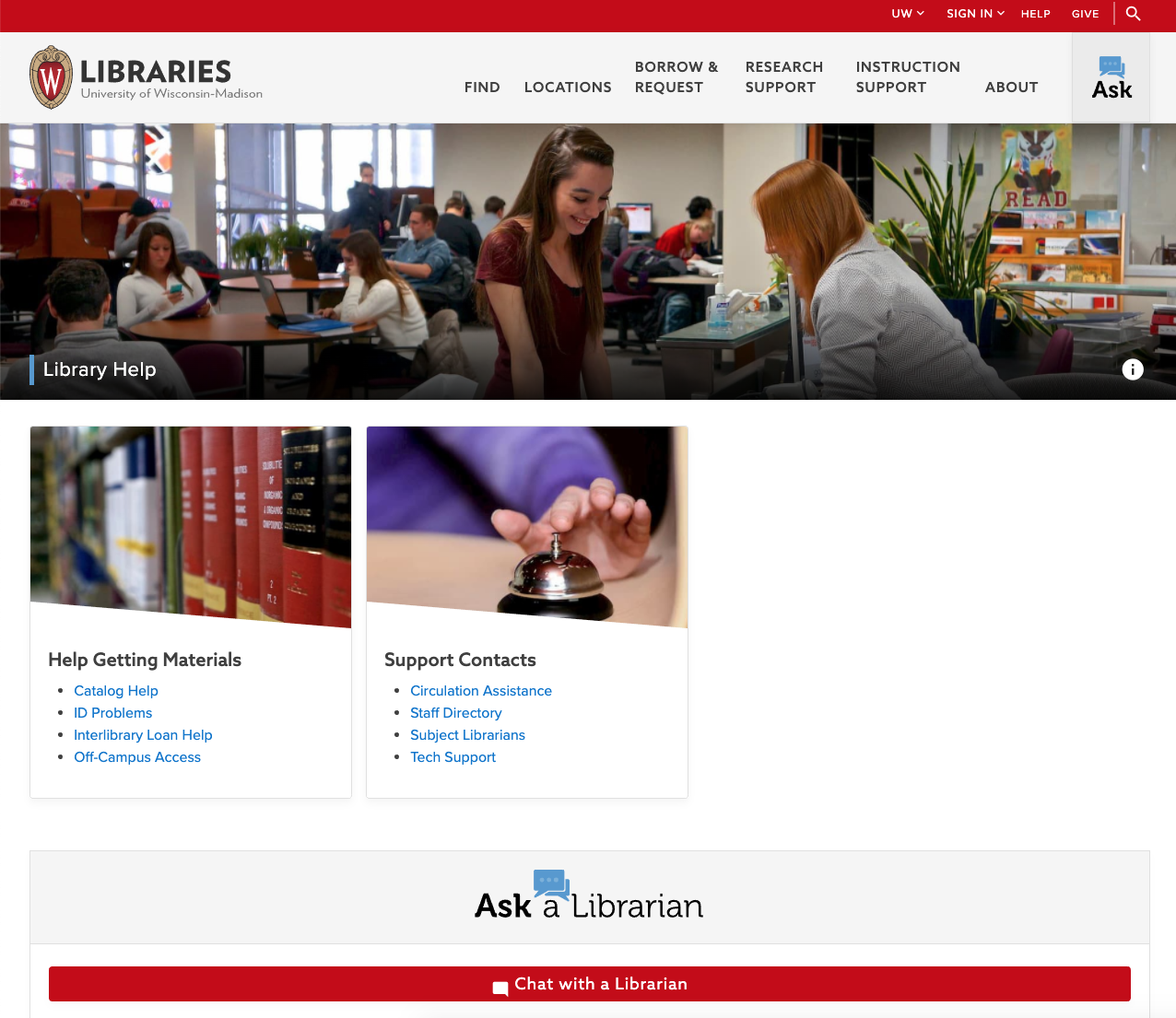
Get on-demand help from a real person who also happens to be a librarian! They can help you search for resources for class assignments, personal projects, or just to satisfy your curiosity. It’s not limited to just library materials, either – they can help you find all kinds of information online.
It’s similar to ChatGPT or Claude but with significantly lower risk of false information and better understanding of user needs.
Design and Graphics
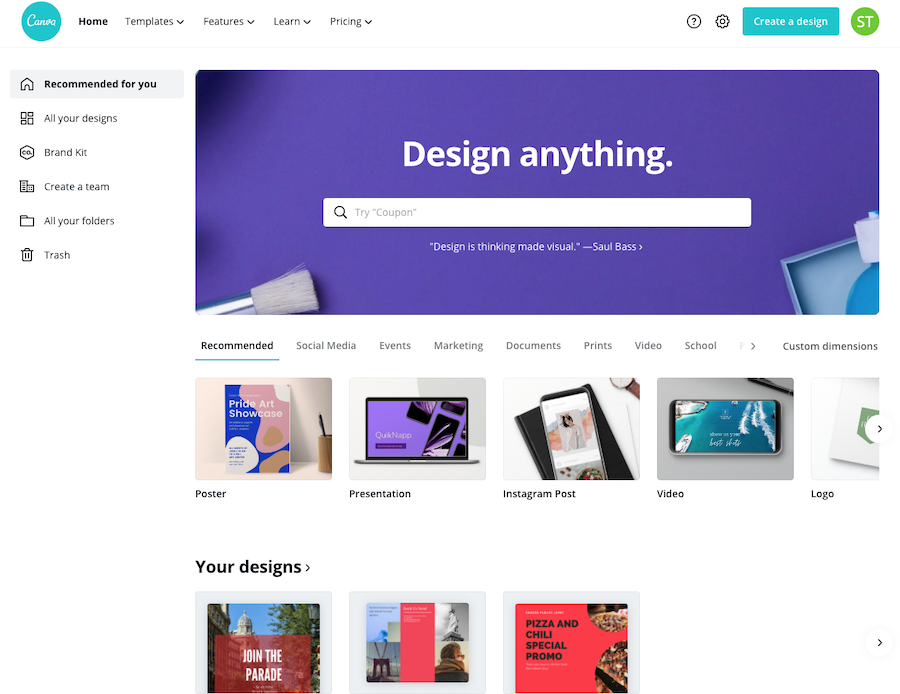
Canva
Canva has cornered the market and become the one-stop-shop for anything design-related. Canva makes it easy to produce great looking flyers, posters, business cards and more, using a simple interface and professionally designed templates. A modest selection of tools and templates are available via the free tier, but the majority of the library and functionality – including things like branding and custom design schemes – require a paid subscription.
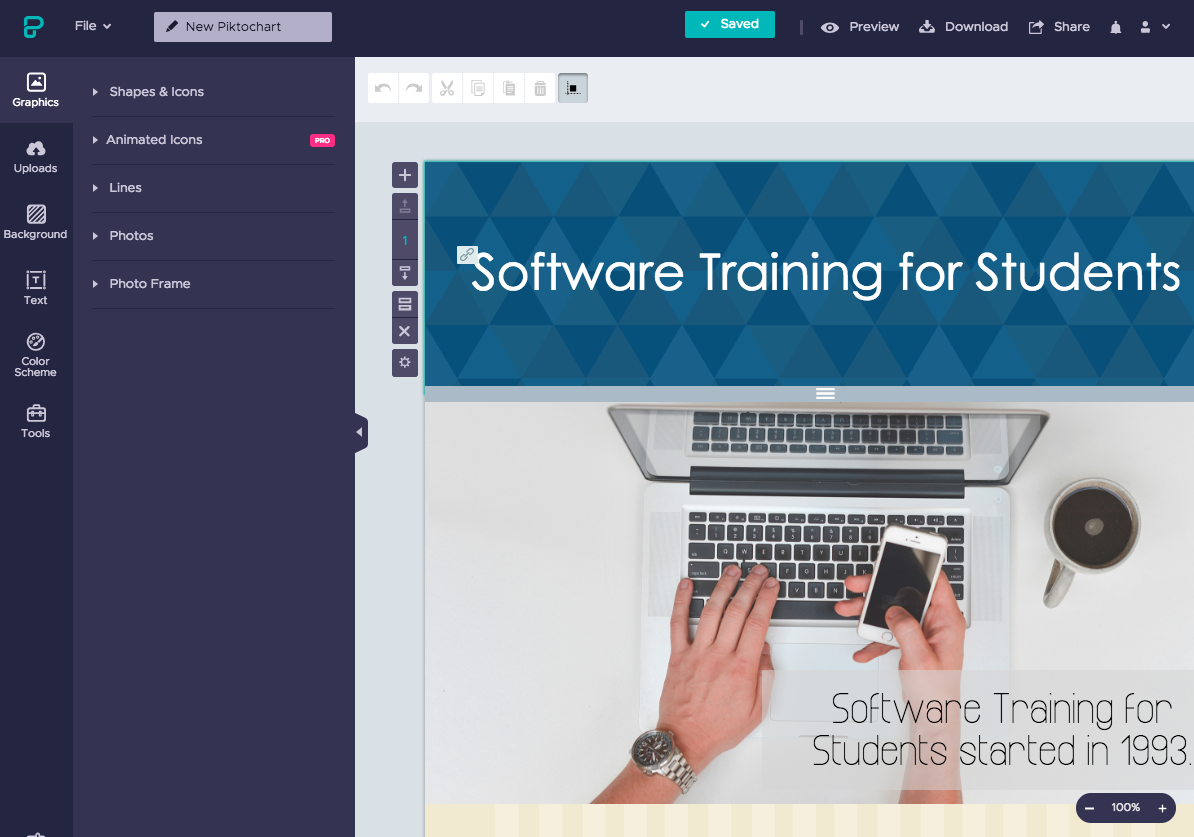
Piktochart
An alternative to Canva, Piktochart also lets you easily create great-looking infographics, posters, and presentation materials.
Photopea
PhotoPea is basically Adobe Photoshop, recreated in your web browser, for free.
If you are an experienced Photoshop user, all of the familiar shortcuts and workflows are recreated in this web app. If you’ve never used Photoshop before, PhotoPea is a great way to get familiar with the interface and learn the basics.

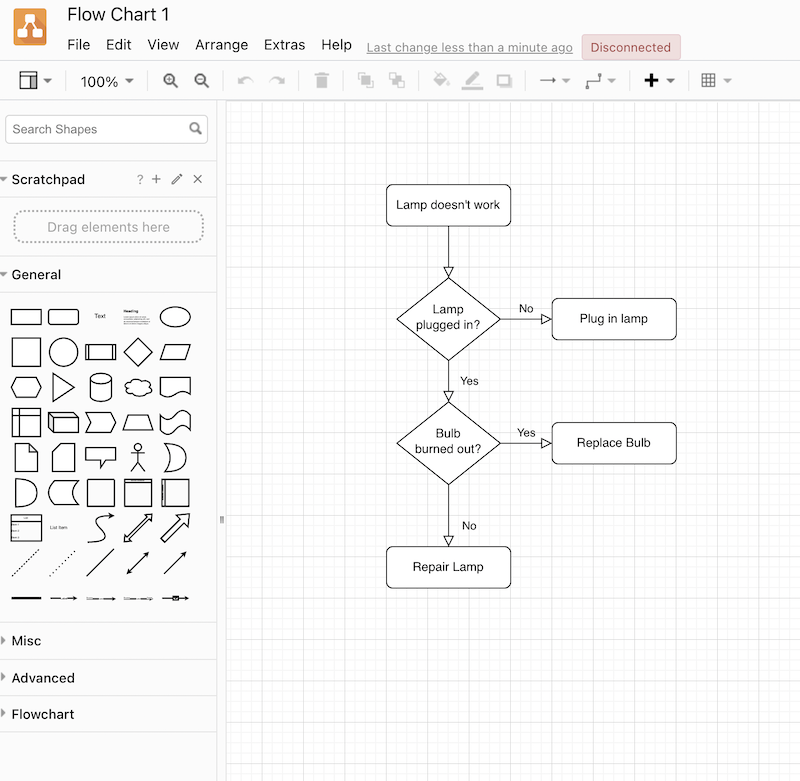
draw.io
The draw.io app allows you to easily create and share flowcharts and other types of visual chart aids. Easily save them to Google Drive, GitHub, and more.
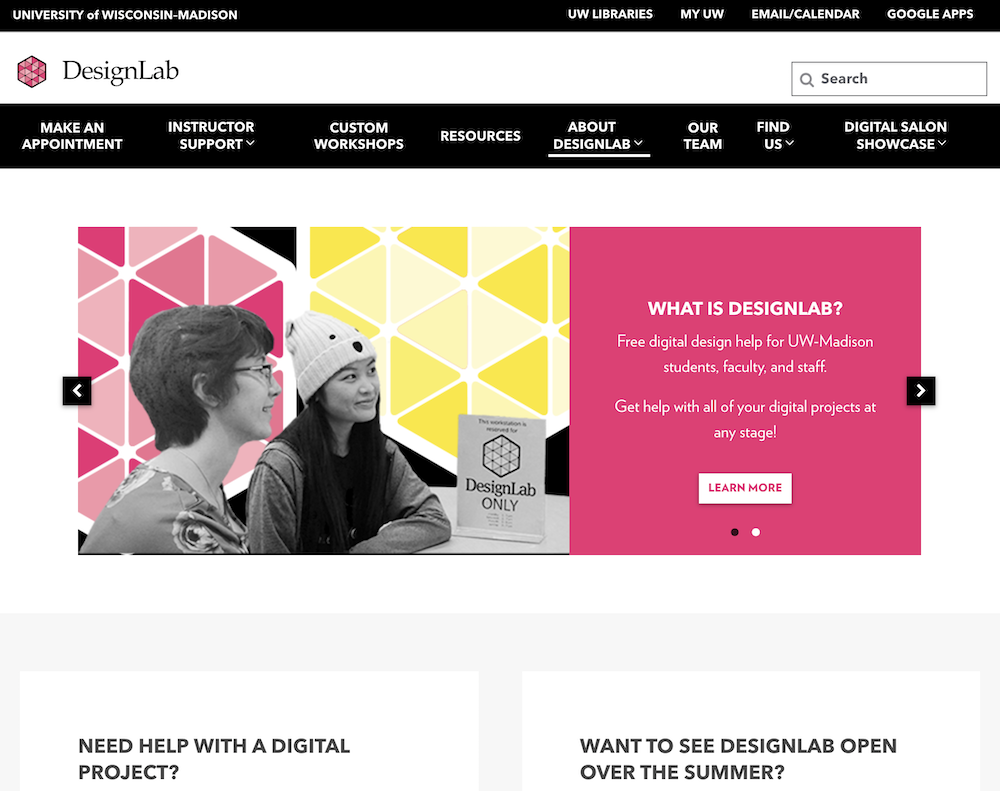
DesignLab
DesignLab is a free service for UW-Madison students that offers design help for any project you may have – research posters, formatting long documents, student org flyers, video essays, and more.
Set up 1-on-1 appointments with the DesignLab consultants and learn how to make your work easy to understand and visually pleasing.
Coding Tools
Visual Studio Code (VS Code)
Visual Studio Code is one of the most widely used code editors today. Featuring built-in support for many languages, rich editing tools and workflow improvements, terminal and versional control integration and more, as well as hundreds of plug-ins to help with specific coding needs. VSCode has many AI-integration features that allow both tool-based and agent-based AI.
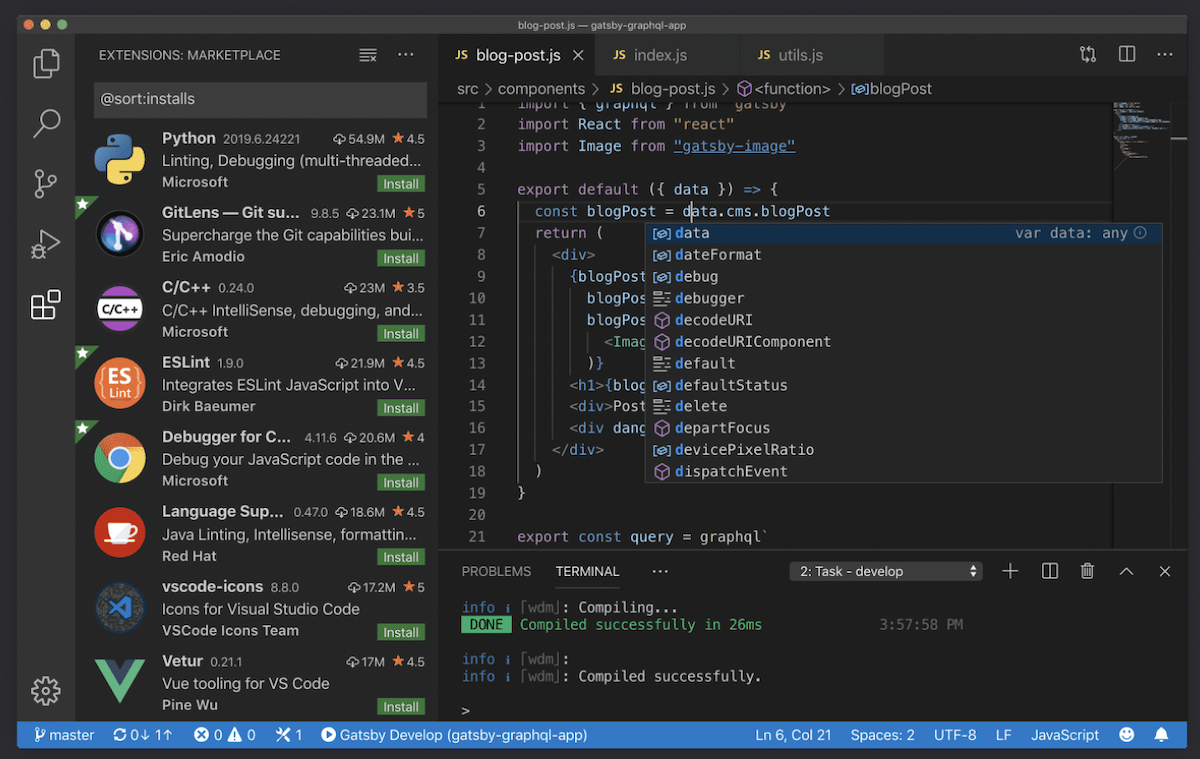
VS Code is different from regular Visual Studio, which is a standalone IDE from Microsoft that is mainly used for the programming languages C#, .NET, and C++.
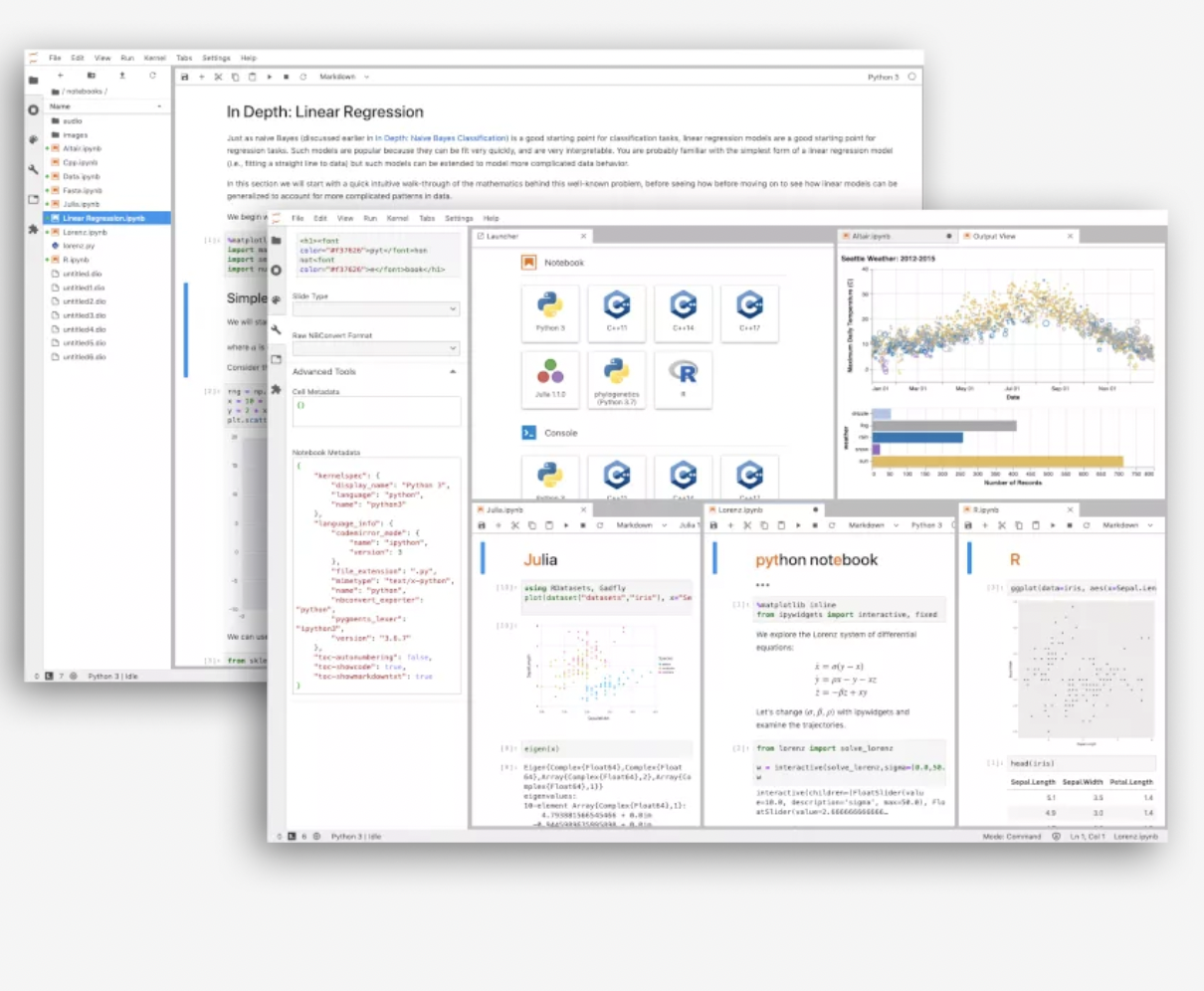
Project Jupyter
Jupyter is a development environment that integrates Python, R, Julia, and a number of other languages in a robust platform for data science, scientific computing and more.
Free to use and entirely open-source, there are plenty of resources to help you in your development workflows.
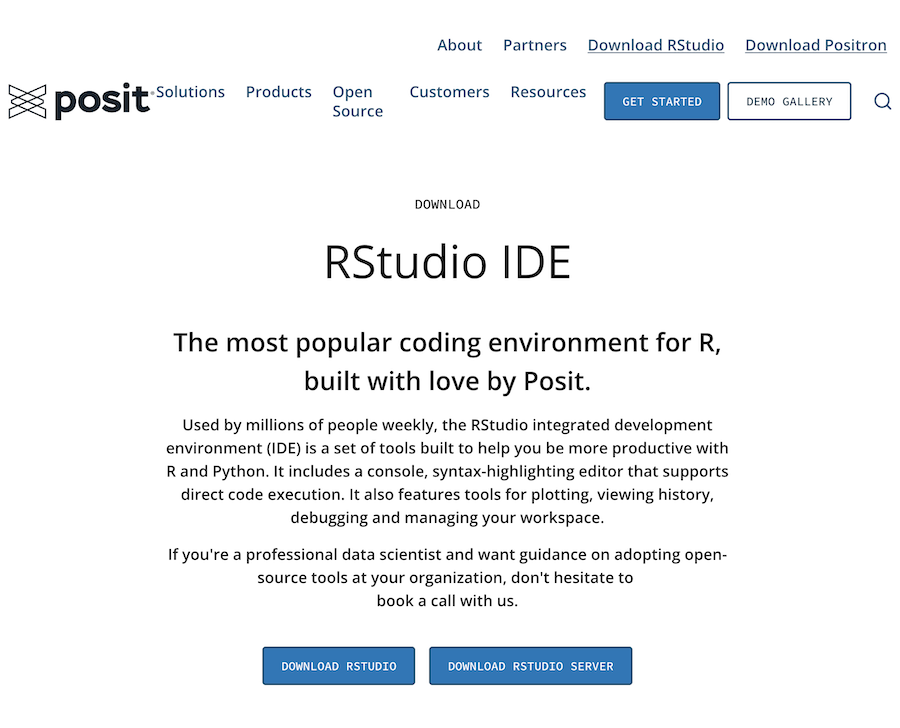
R Studio
RStudio is the main development environment for R, the programming language that is increasingly the tool of choice for statistics and data process in academic research.
Campus Life and Services for Students
Writing Center
The Writing Center is a free service available to all UW-Madison students offering writing help (editing, style, citations, project management, etc.) for any writing project (even things like grant proposals and applications).
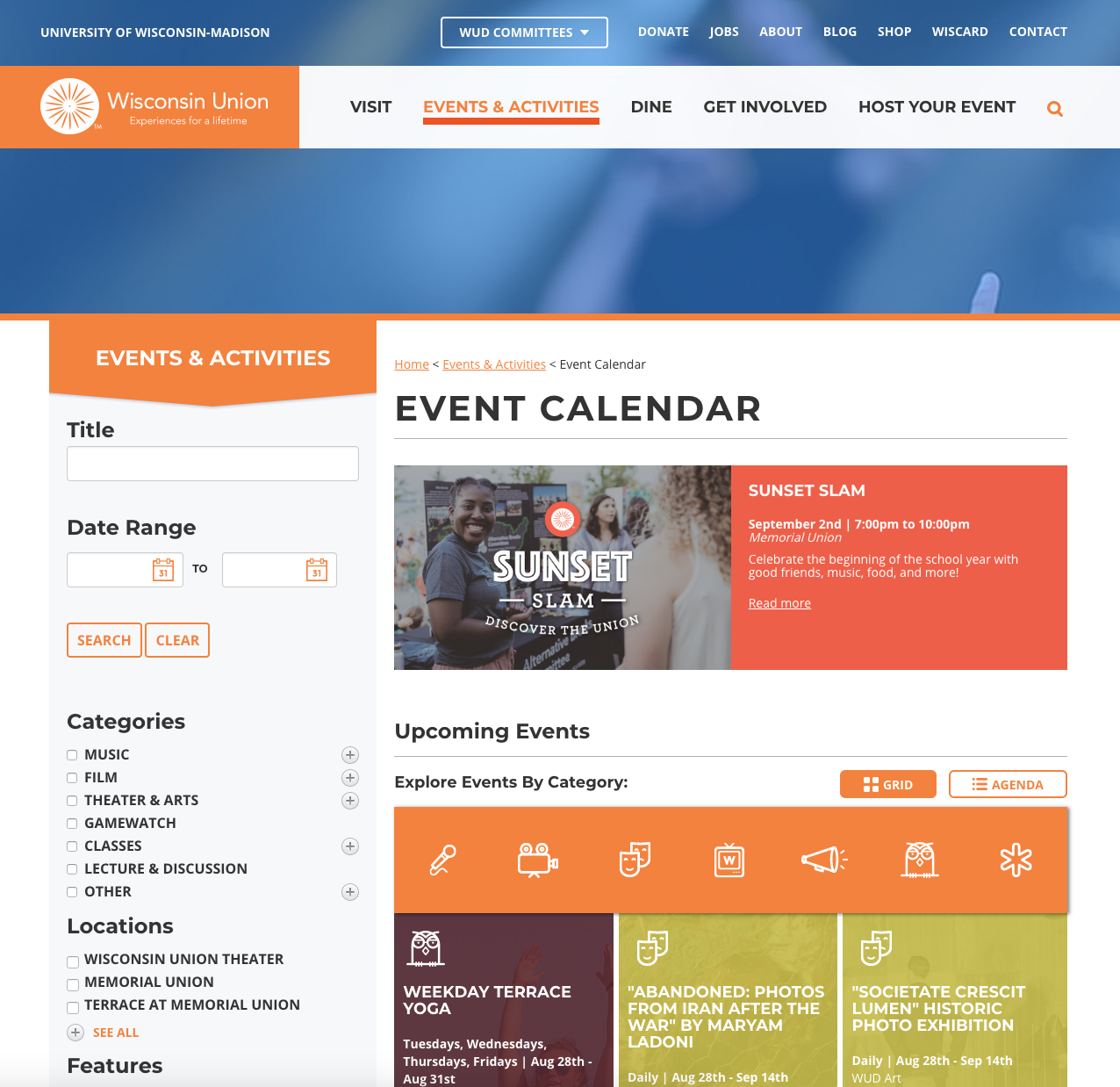
Union Event Calendar and Today In The Union (TITU)
https://union.wisc.edu/events-and-activities/event-calendar
The Union Event Calendar lists upcoming events taking place in Memorial Union and Union South, such as music performances, speakers, campus events, and more.
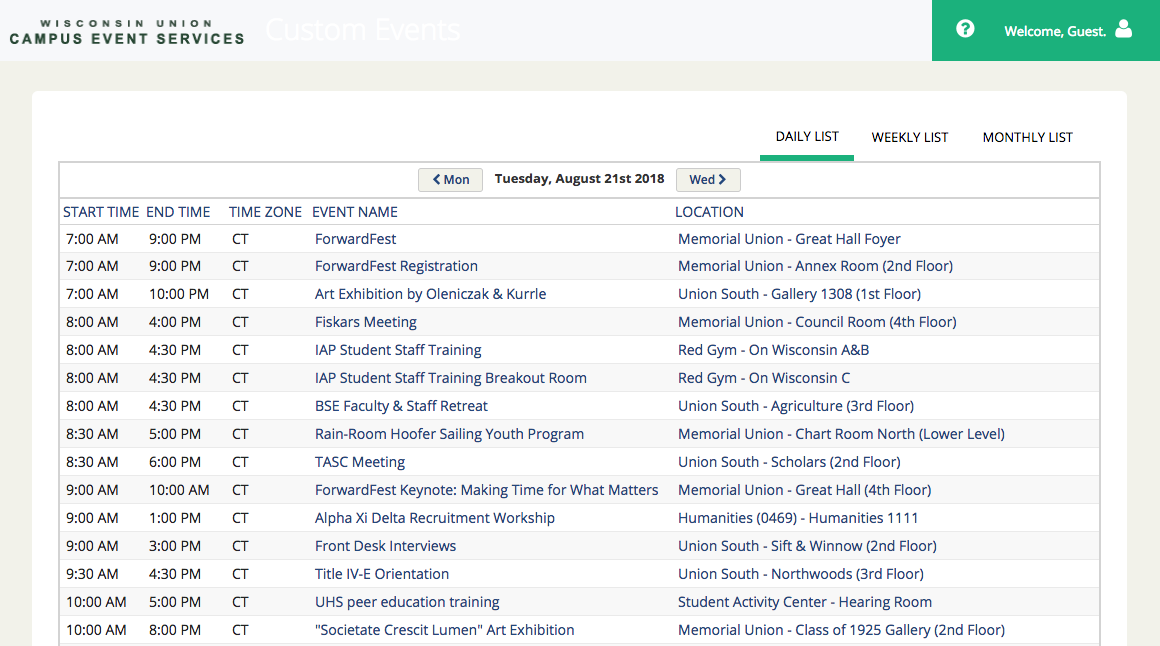
Today in the Union offers specific locations for meetings and other events that may not be listed on the main Event Calendar listings.
UW-Madison Events Calendar
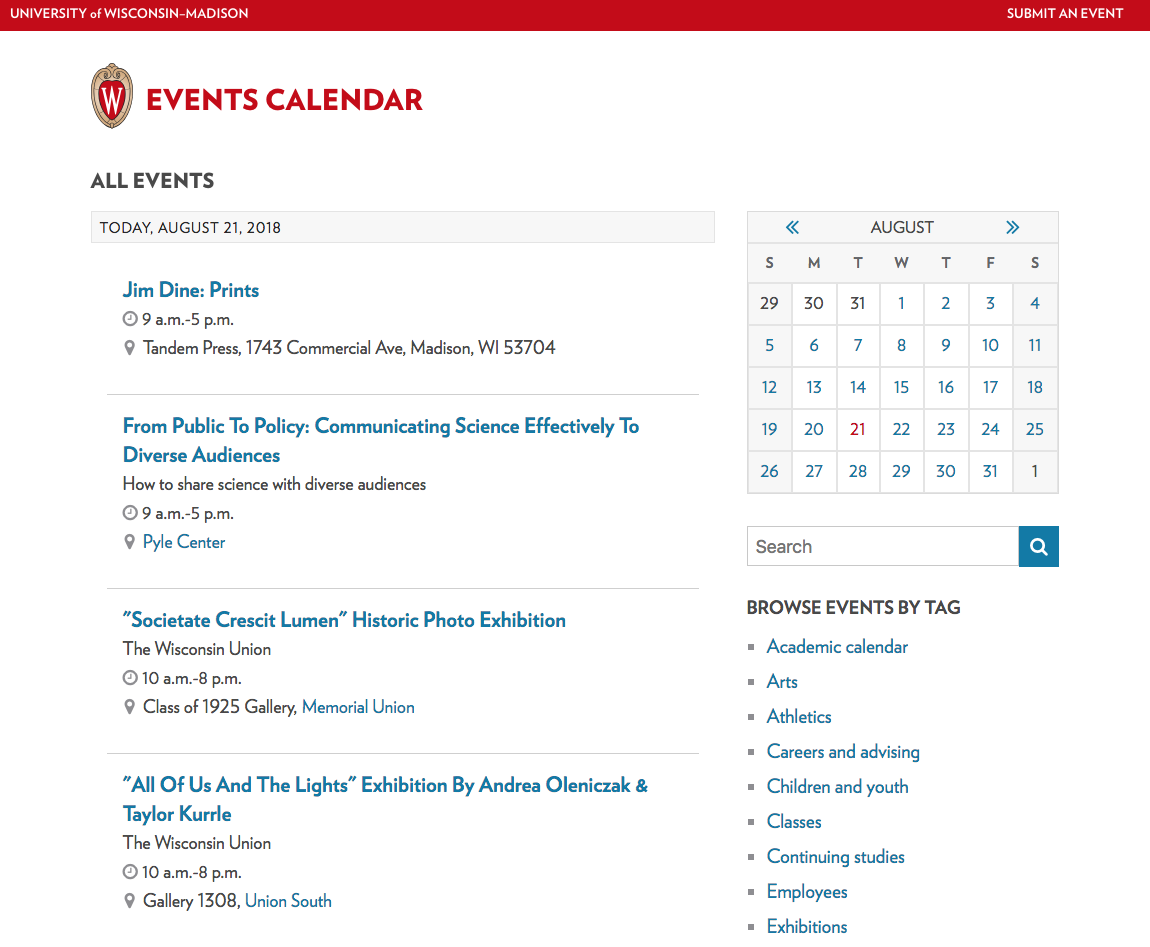
Similar to Today in the Union, the UW Events Calendar lists events from all around campus. Speakers, art exhibitions, training events (like STS Workshops) and more.
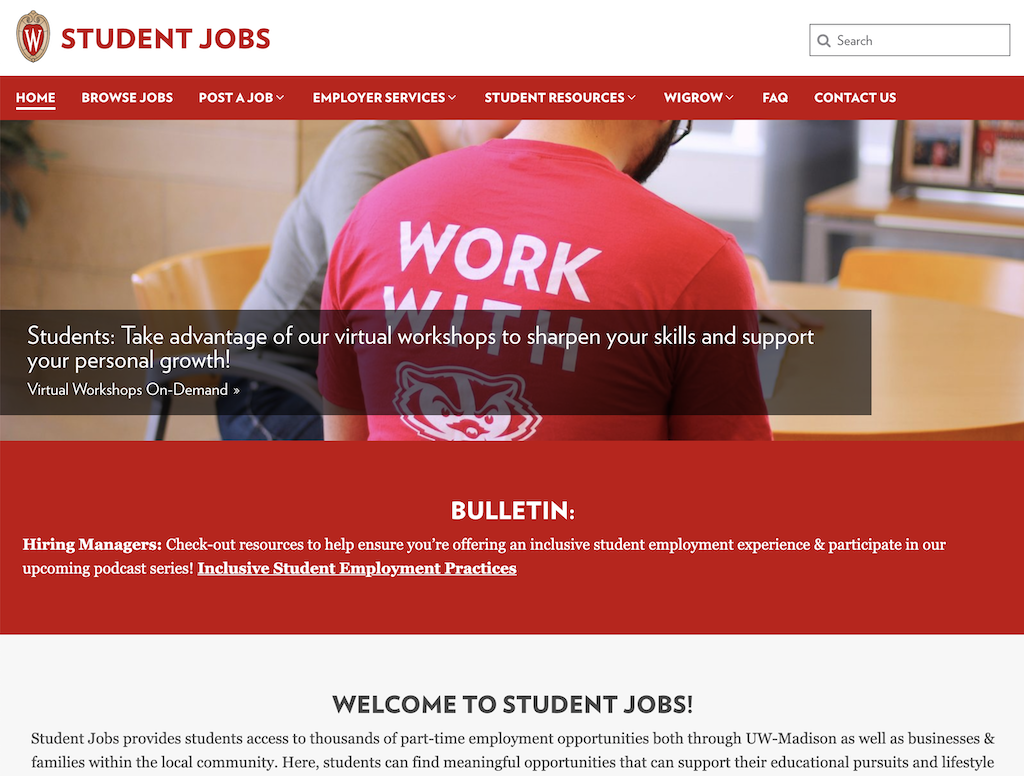
Student Job Center
The easiest way to find a job on campus.
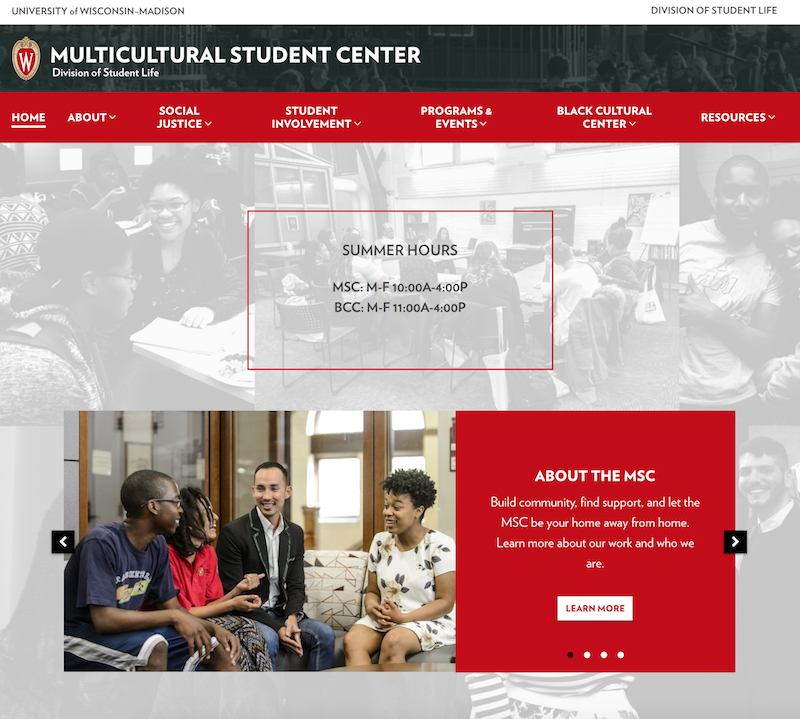
Multicultural Student Center
A great resource for connecting with, learning about, and getting involved with some of the diverse and underserved parts of the campus community. The MSC provides workshops on inclusivity, social justice, advocacy, and more, as well as resources for students from historically underrepresented groups on campus.
The MSC recently opened the Latine Student Center and Asian Pacific Islander Desi American Student Centers and is also the parent organization to the Black Cultural Center, which supports, advocates, and provides resources for students of African-American, Caribbean, Afro-Latinx, and African Diaspora descent.

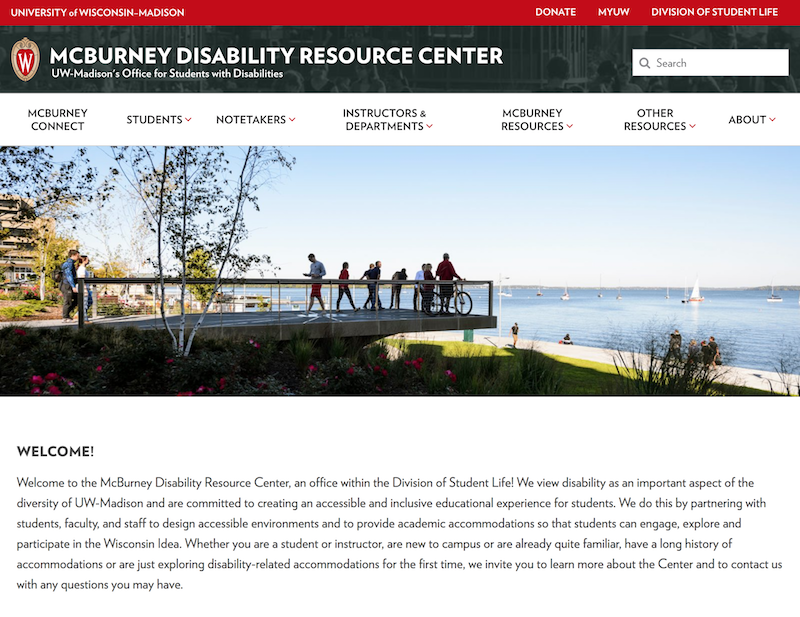
McBurney Disability Resource Center
The McBurney is the campus source for ensuring accessibility, inclusivity, and equal opportunity for students of all ability levels. Physical accommodations, assistive technology, sign-language interpreters, note-takers and many other servicesare available for students and staff with disability-related needs.
Related: the Disability Resource Guide from Facilities Planning and Management (FPM) offers resources for building access and accomodation, emergency planning, snow removal, and more.
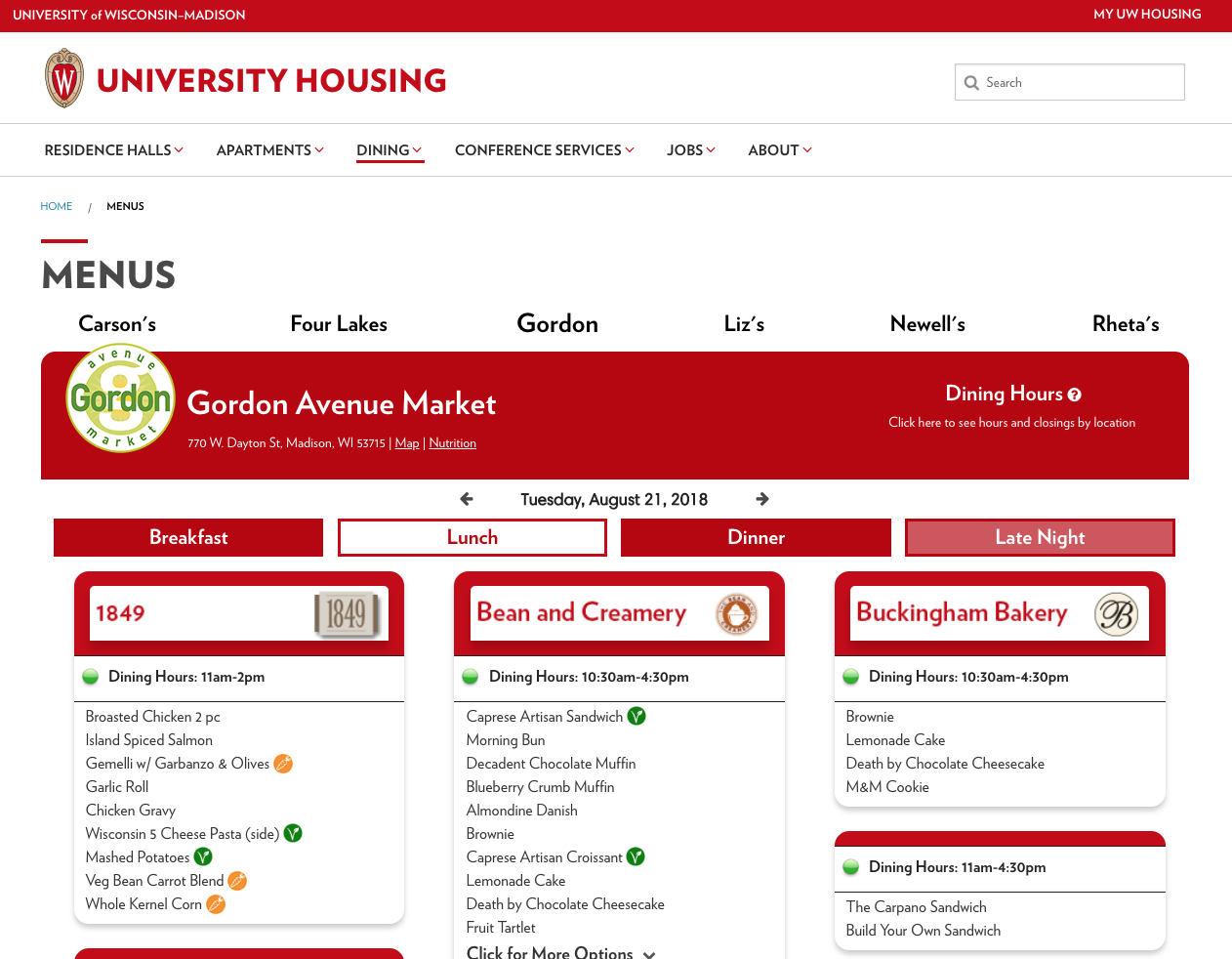
Dining Hall Menus
http://menus.housing.wisc.edu/menus/
See what’s for lunch without having to hoof it all the way to the dining hall.
Campus Maps
A helpful list of accessible entrances to campus buildings is available from Facilities Planning and Management.
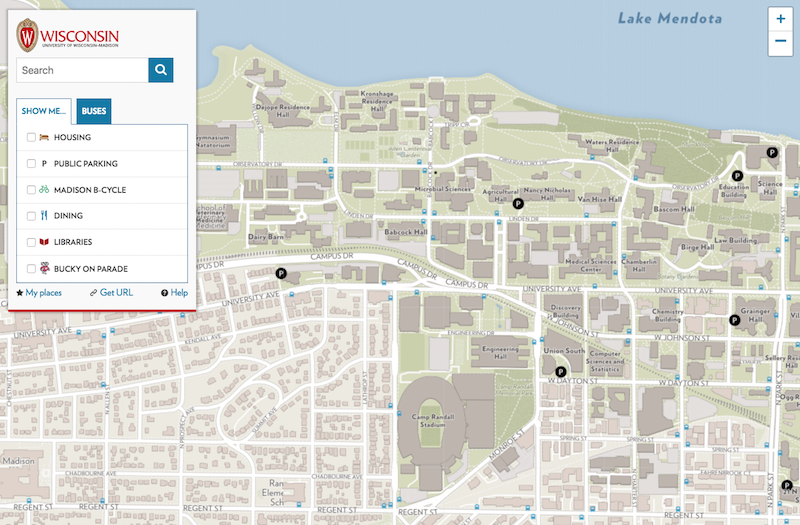
Find your way to classes and campus events without having to wander aimlessly. Find buildings, bus routes, B Cycle locations, and more.
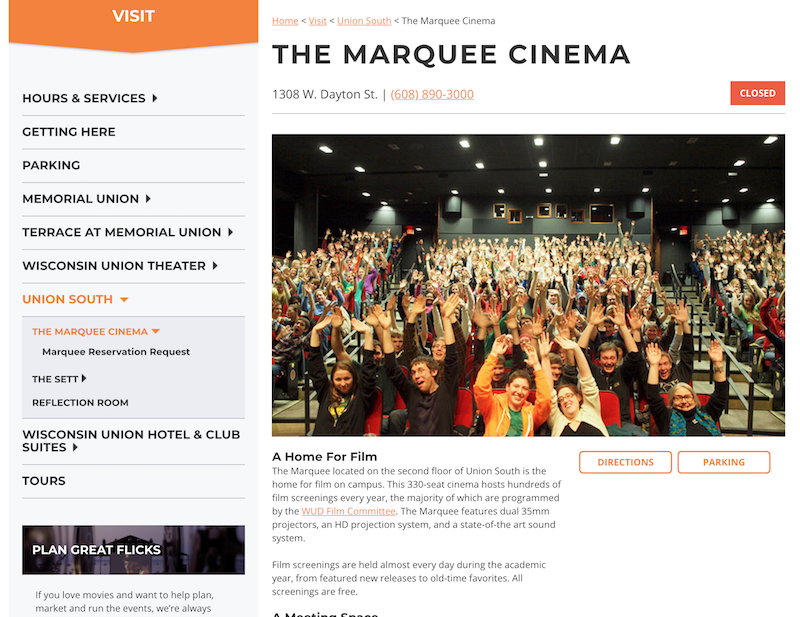
Marquee Movie Theater
https://union.wisc.edu/visit/union-south/the-marquee
A real-deal movie theater, right in Union South. Features 35mm and digital HD projection, and movie selection ranges from current run movies to classics.
Movies are chosen and provided free of charge by WUD Film and are not limited to students – friends and family are welcome!
WUD
https://union.wisc.edu/get-involved/wud
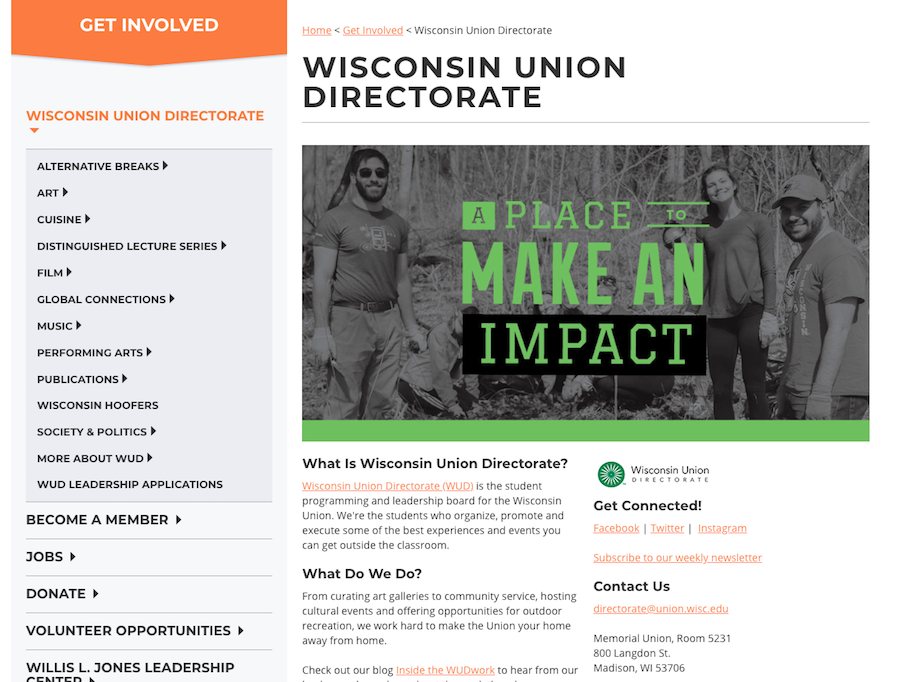
Who decides which distinguished lecturers to invite, bands to book, movies to show, and events to schedule? You do! The Wisconsin Union Directorate (pronounced like ‘wood‘) is a student-run organization that programs all Wisconsin Union activities and events.
All students are invited to join and participate.
Software Training for Students
Free technology training workshops for all undergraduate and graduate students at UW-Madison. Attend free open-enrollment workshops, schedule custom training for your student organization, or get 1-on-1 help with your specific projects.
UW-Madison Experts Database
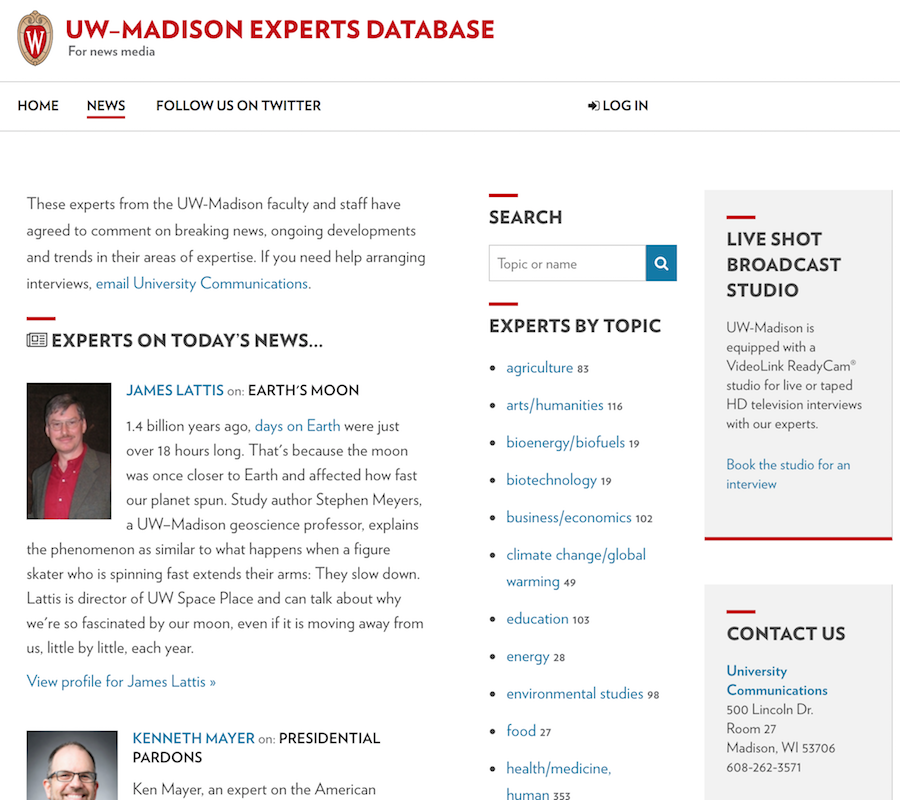
This list was assembled as a resource for media outlets to look up to faculty and staff members who are willing to speak as experts in their respective area of study, but it’s also a great place to start looking if you need an expert for reference.
Privacy, Security, and Ad Management
AdBlock Plus
A free plugin designed to block intrusive ads (including on YouTube), trackers, and other sneakiness that infects your web browsing. You can also block specific elements on a web page from displaying.
By default, AdBlock Plus allows what it calls “Acceptable Ads” and other advertising that it calls unobtrusive, but you can set it to block ALL advertising via ABP’s preferences screen.
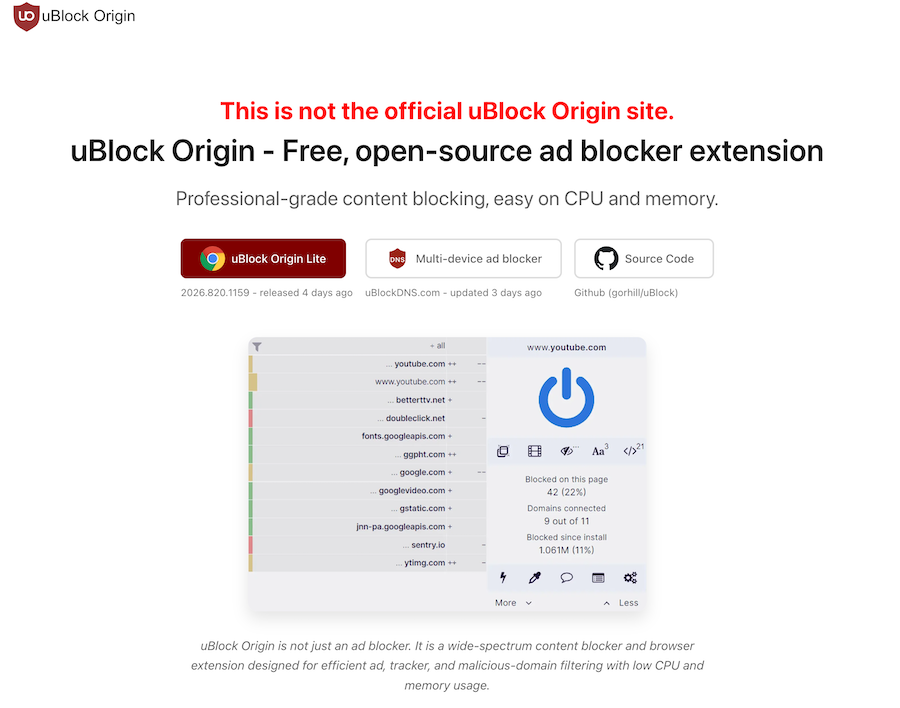
uBlock Origin (Lite)
An open-source browser extension that blocks trackers, cookies, and information-aggregation services from using your browsing data without your knowledge.
Gives a clear breakdown of whether each website’s script is a tracker or not, and lets you enable/disable them individually.
Privacy Badger
https://www.eff.org/privacybadger
An open-source browser extension that blocks trackers, cookies, and information-aggregation services from using your browsing data without your knowledge.
Gives a clear breakdown of whether each website’s script is a tracker or not, and lets you enable/disable them individually.
Quick Javascript Switcher
Turns off Javascript (aka the source of most of those annoying “You’ve read all of your free articles for the month! Subscribe here!”, “Sign up for our newsletter!” popups, etc.) per site, with the click of a button.
Has the added benefit of disabling most advertising and tracking/surveillance tools that websites use, but can break some websites that need JavaScript to function.
10 Minute Mail
Create a temporary email address that expires after 10 minutes (or extend it in increments of 10 minutes as needed). Helpful when a site or service requires you to create an account to use it or try it out, but you don’t want to get spammed by their marketing emails for the rest of your life.
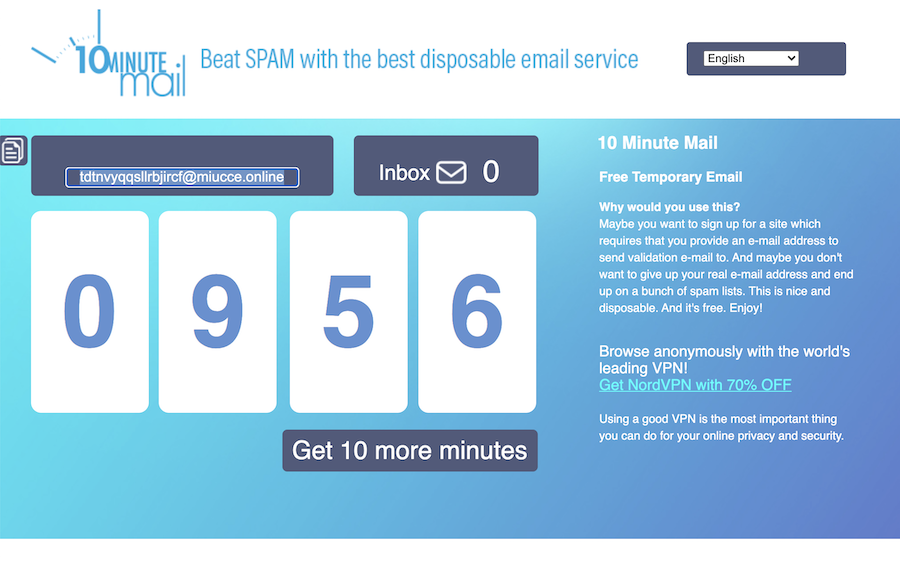
A similar site with a slightly different interface is Temp-Mail
Miscellaneous and Fun
The Internet Archive and Wayback Machine
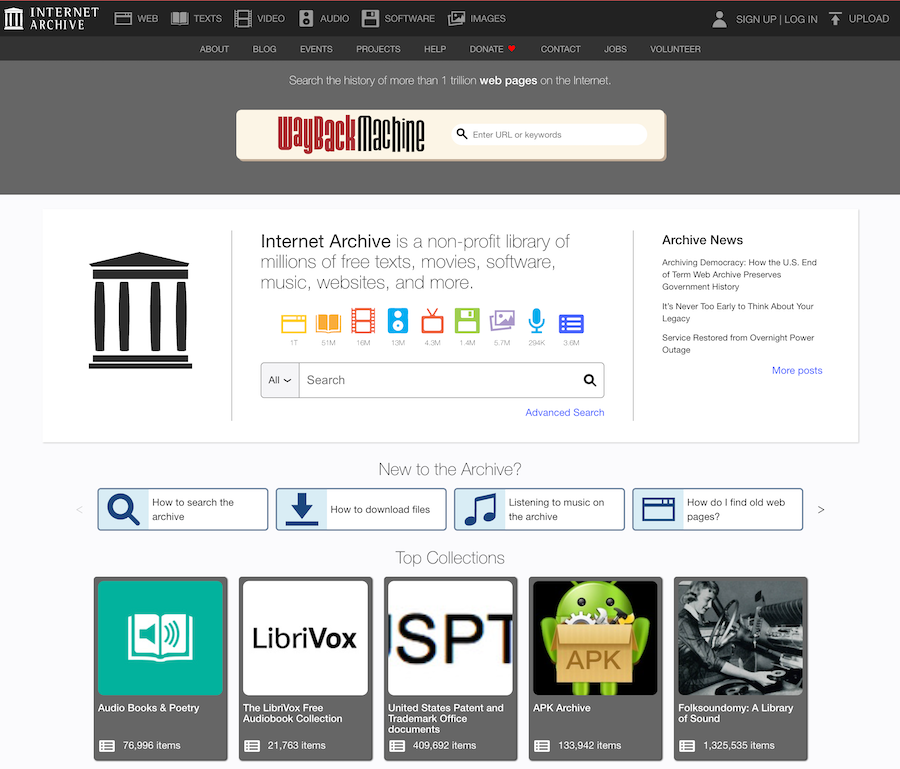
The Internet Archive is a non-profit library containing millions of free images, e-books, government document records, audio recordings of thousands of concerts, out-of-print movies that don’t stream online anywhere, and much more. It also hosts the Wayback machine, which is a record of the contents of web pages at various points in time.
Truly one of the great ongoing efforts started during the early days of the internet.
UW-Madison Subreddit
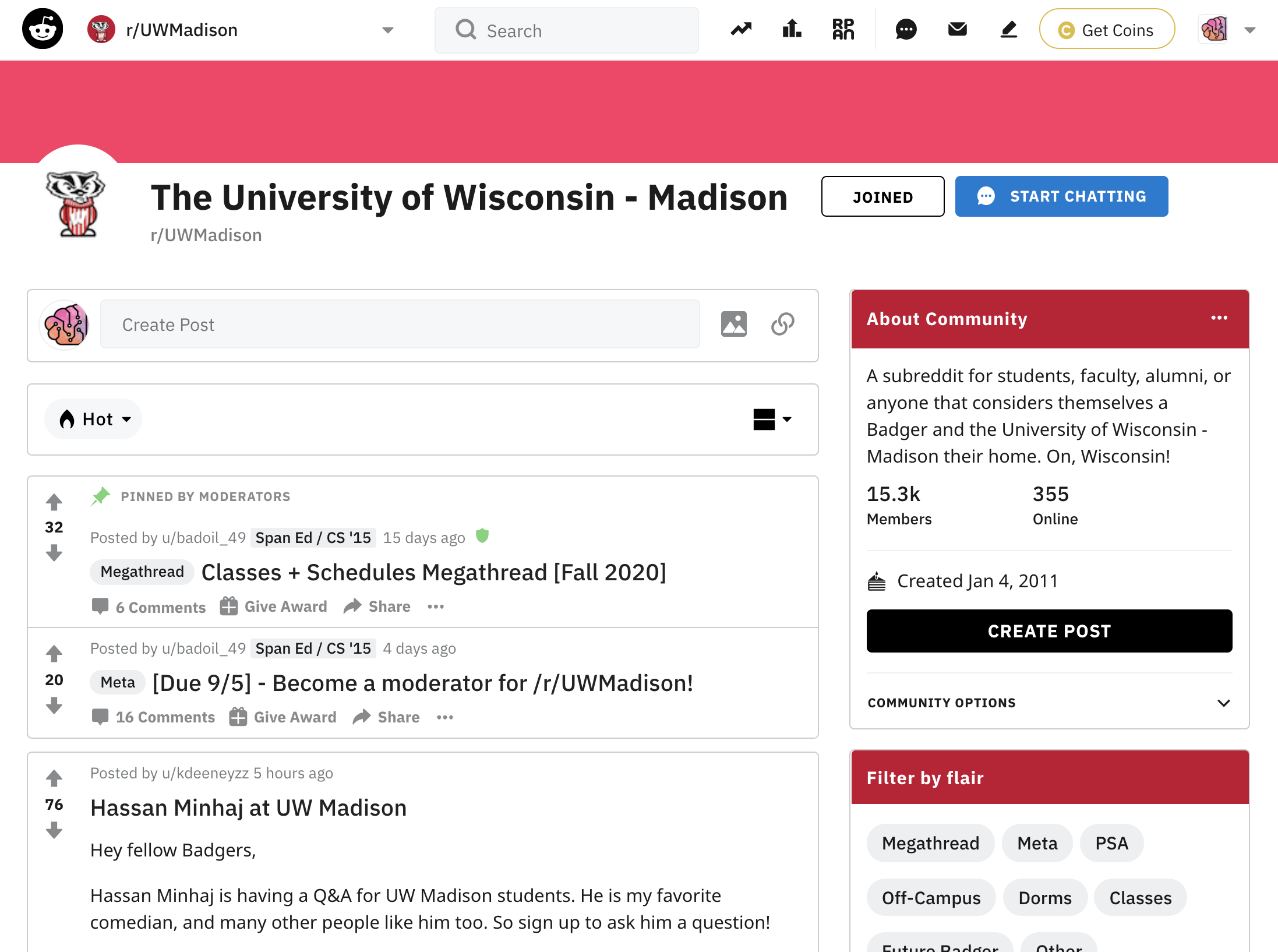
https://www.reddit.com/r/UWMadison
A small but reasonably active community on the massive social website Reddit.
This subreddit (which is Reddit’s term for a topic-focused community forum) is good for updates on things happening on campus, other students’ experiences with particular classes/instructors, and general life as a Badger.
A Soft Murmur
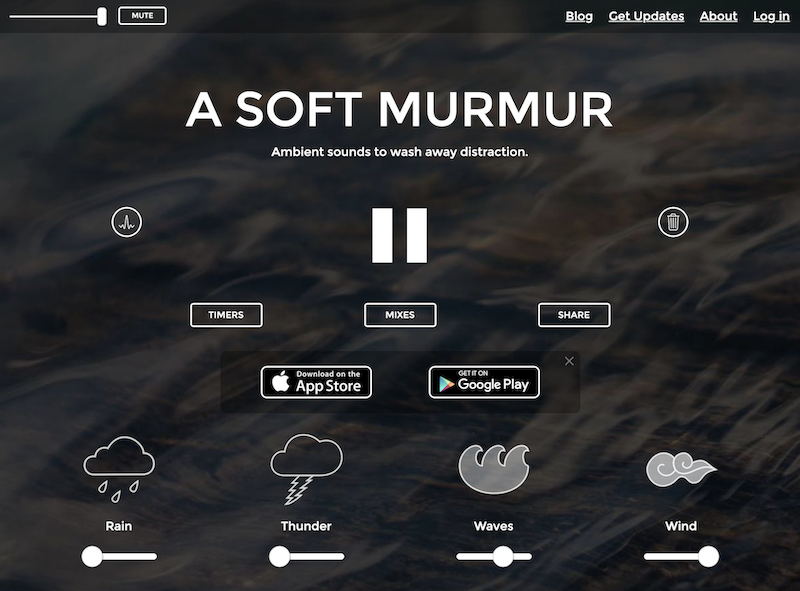
This simple website offers a variety of types of ambient noise to help you relax and focus. Mix and match different noise options using volume sliders. The main site is free, but you can also sign-up for a paid version with more sounds and presets.
Learn Music with Ableton
https://learningmusic.ableton.com
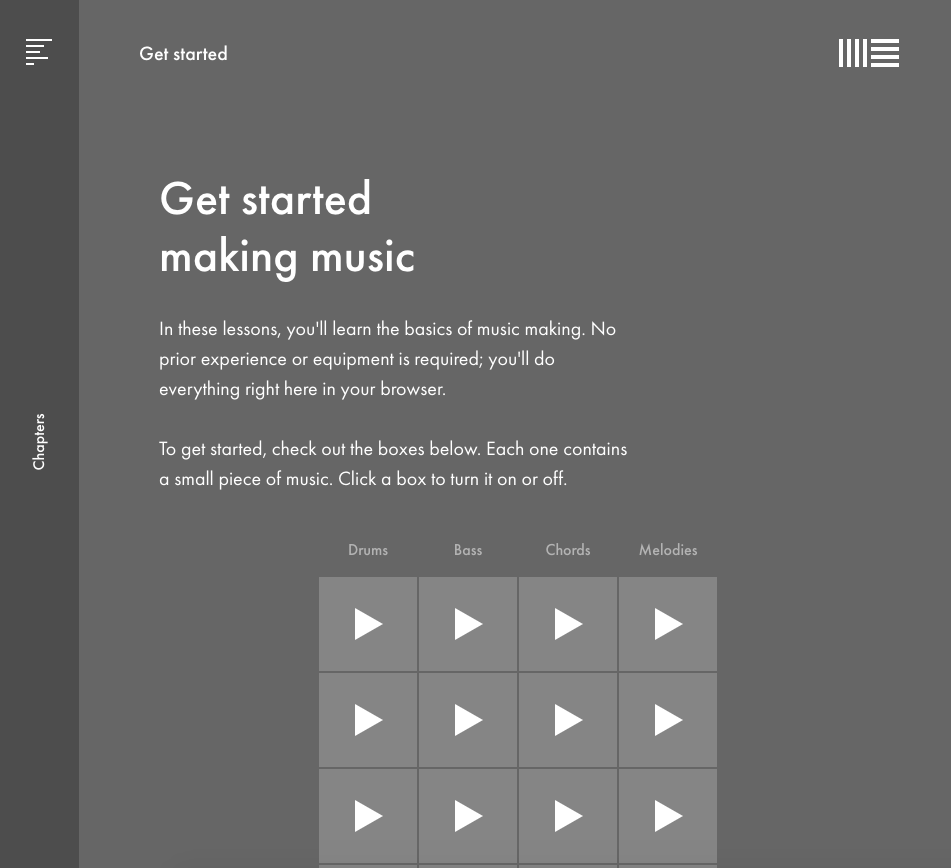
This is a novel but in-depth introduction to how music works, from basics like beats and melody to more complex topics like polyrhythms. Easy to follow for any skill level – no previous music experience required.
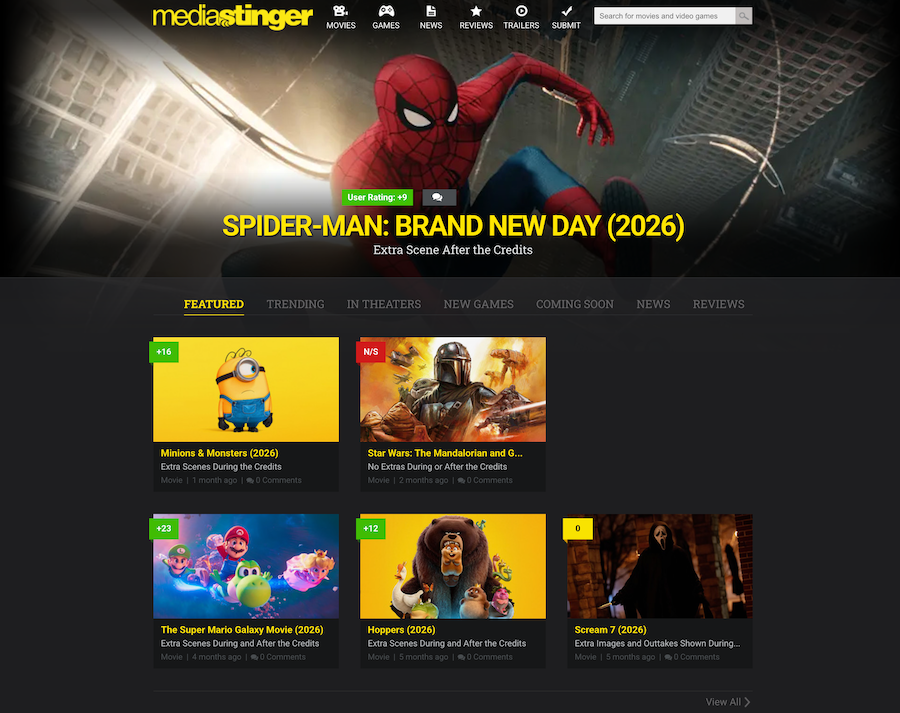
MediaStinger
A site that tells you whether the movie you’re watching has any special scenes or after-credits moments
Just The Recipe
This simple tool does exactly what it sounds like: it strips out all the long-winded stories, narrative embellishments, and other things that are only there to pad out post length and game search engine results and provides you with just the recipe.